KVM/Qemu VMs with a multi-screen Spice console – II – local access with remote-viewer via a network port

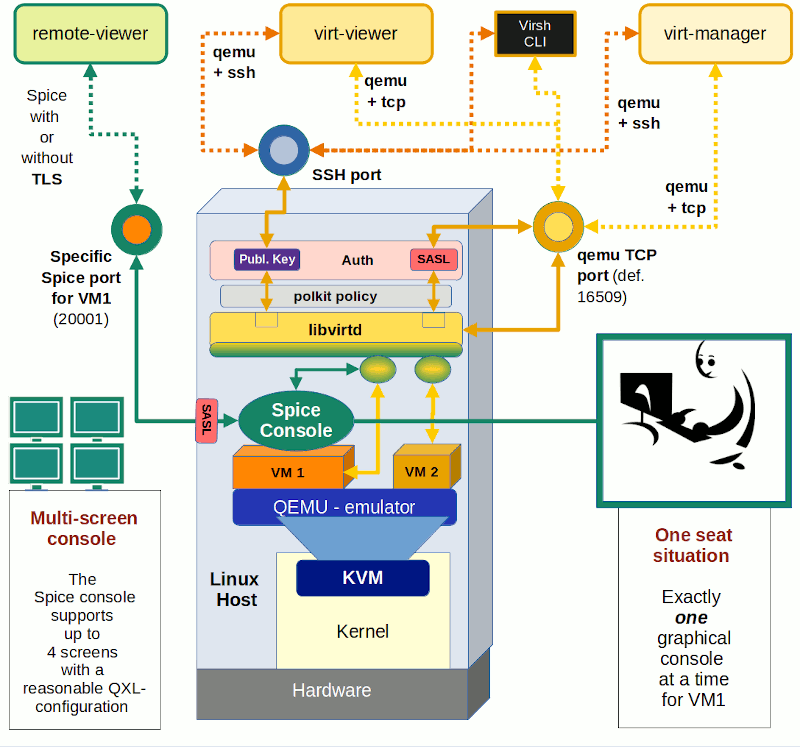
In my first article in this series on local and remote connections to the Spice console of a KVM/Qemu virtual machine [VM] I have given you an overview over some major options. See the central drawing in

KVM/qemu with the graphical multi-screen Spice console – I – Overview over local and remote access methods

In this post we explore a part of the drawing’s left side – namely a local connection with the remote-viewer client over a network-port and the “lo”-device. Local means that we access the Spice console with a Spice client in a desktop session on the KVM/Qemu host.
You can find some basic information on “remote-viewer” here.

Note: “remote-viewer” supports VNC, too, but we ignore this ability in this series.

A local scenario with remote-viewer on a KVM/Qemu host corresponds to desktop virtualization – though done with a remote tool. Such an approach can become a bit improper, because setting up ports for potential remote network connections always has security implications. This is one of the reasons why I actually want to discuss two different local access methods which can be realized with remote-viewer:

  • Method 1: Access via a network port (TCP socket). This standard method is well documented on the Internet both regarding the VM’s setup (e.g. with virt-manager) and the usage of remote-viewer (see the man pages). The network based scenario is also depicted in my drawing.
  • Method 2: Access via a local Unix socket. This method is not documented so well – neither regarding the VM’s setup (e.g. with virt-manager) and not at all by the man pages for remote-viewer.

You may complain now that I never indicated anything in the above drawing about a pure Unix socket! Well, at the time of writing the first article I did not even know that remote-viewer worked over a pure Unix socket and how one can configure the VM for a Unix socket. I will discuss the more common “Method 1” in this present article first. “Method 2” will be the subject of the next post – and then I will provide an update of the drawing. Talking about sockets: When you think a bit about it – Unix sockets must already be an ingredient of the local interaction of libvirt-tools with qemu, too, ….

Below I will discuss a set up for “Method 1” which is totally insecure. But it can be realized in a very simple way and is directly supported by virt-manager for the VM setup. Thus, it will give us a first working example without major efforts for creating TLS certificates. But, you are/were warned:

Disclaimer:
The test-configurations I discuss in this and the next articles of this series may lead to major security risks. Such configurations should NOT be used in productive multi-user and/or network environments without carefully crafted protection methods (outside the qemu-configuration) – as local firewall protection, system policies, etc. I take no responsibility whatever for an improper usage of the ideas presented in this article
series.

Assumptions for test scenarios

  • The KVM/Qemu host in this article series is an Opensuse Leap 15.2 host. Most of the prescriptions discussed may work with some minor modifications also on other Linux distributions. But you must look up documentations and manuals …
  • I assume that you already have set up a KVM/Qemu based test-VM with virsh or virt-manager. Let us call the VM “debianx“. Actually, it is a Kali system in my case. (Most of the discussed measures will work on guests with a Debian OS, too.)
  • On our Opensuse KVM host we find a XML-definition file “debianx.xml” for a libvirt domain (i.e. a VM) below the directory “/etc/libvirt/qemu/“, i.e. “/etc/libvirt/qemu/debianx.xml”. It has a typical XML structure and can be edited directly if required.
  • The KVM host itself has a FQDN of “MySRV.mydomain.de“. (MySRV is partiall writtenin big letters to remind you that you have to replace it by your own domain.
  • The user on the KVM host, who invokes remote-viewer to access the VM, has a name “uvma“. We will later add him to a group “libvirt” which gets access rights to libvirt tools. We shall also work with a different user “uvmb” who is a member of the group “users”, only. Both users work on a graphical desktop on the KVM/Qemu host (!) – let us say a KDE desktop. These users open one or more Spice client windows on the host’s desktop to display graphical desktops of the KVM/Qemu guest VMs – as if the windows were screens of the VM.

We must carefully distinguish between the (KDE) desktop used by “uvma” on the KVM host and the desktop of the guest VM:

The Spice client windows on the KVM host’s (or later on independent remote systems) desktop present full graphical desktops (Gnome, XFCE, KDE …) of the VM and allow for interactive working with the VM. The desktop used on the host can, of course, be of a different type than the one used on the guest.

I will use this first practical article also

  • to have a brief look at two basic configuration files for libvirtd and qemu settings,
  • to discuss some basic setup options for a Qemu VM,
  • to check the multi-screen ability of remote-viewer
  • and to prove the “one-seat” situation for the Spice console.

I restrict my hints regarding the guest configuration to Kali/Debian or Opensuse Leap guest systems on the VM. I provide images for a Kali guest system, only. I do not have time for more …

Make backups

Before you start any experiments you should make a backup of the directories “/etc/libvirt” and “/etc/pki” of your host – and in doubt also of the disk-files (or real partitions) of your existing VMs. You should also experiment with a non-productive test VM, only.

Basic security considerations

(In-) Security is always a bit relative. Let us consider briefly, what we intend to do with respect to “Method 1”:

With the first method we define a network port for unencrypted connections without authentication.

In principle the port can be used by anyone having access to your network or anyone present on your PC. Such a configuration is therefore only reasonable for desktop virtualization

  • if you really are alone on your PC
  • AND if you have a local firewall preventing access to the port from any other system AND if there is a local policy restricting access to the Qemu-hypervisor or Spice-clients.

nOtherwise it opens a much too big attack surface. Remember: Anyone being able to use the network port can kick you off your Spice console session seat, remotely, locally and also when you are already logged into the guest OS. And:

All data transfer over any kind of network device (lo, ethernet, virtual devices on the host, …) occurs unencrypted. Other users on your machine (legal users, e.g. active via ssh, or attackers) may with some privilege escalation be able to read it.

Access to the Spice console itself can, however, be restricted to users who know a password. At the end of this article we will add such a simple password to our configuration to get at least some basic protection against kicking you out of a Spice console session.

Preparational step 1: Settings in “/etc/libvirt/qemu.conf” and the integration of Spice with Qemu

As mentioned in the last article, Spice is fully integrated with the Qemu-emulator. So, it will not surprise you that we can modify some general properties of connections to a VM’s Spice console by parameter settings in a configuration file for Qemu. The relevant file in the libvirt-dominated virtualization environment of Opensuse Leap 15.2 is

/etc/libvirt/qemu.conf“.

Readers of my last article may ask now: Why do we need to configure the Qemu-driver of libvirt at all, when we access the Spice console with remote-viewer directly via Qemu ? I.e., without passing a libvirt-layer? As depicted in the drawing?

Answer: Probably you and me start KVM/Qemu based VMs through “virsh” or “virt-manager“, i.e. libvirt components. Then libvirt drivers which are responsible to start the VMs according to its setting profile must know what we expect from the Qemu emulator. If you worked directly with the qemu-emulator (by calling “/usr/bin/qemu-x86_64”) you would have to specify a lot of options to control the outcome! Some sections below you will find an example. Libvirt-programs only automate this process.

“qemu.conf” allows for general default settings of a variety of qemu-parameters. Some of them can, however, be overwritten by VM-specific settings; see the next section. When you scroll through the file you come to a major section which contains Spice parameters. For an easy beginning of our experiments we set some selected parameters to the following values:

 
#spice_listen = "0.0.0.0" # just leave it as it is 
# .... 
spice_tls = 0  # This corresponds to a deactivation of TLS and a INSECURE configuration!
spice_tls_x509_cert_dir = "/etc/pki/libvirt-spice"
# .... 
# just leave the next settings as it is - it creates a socket at  "/var/lib/libvirt/qemu/domain-1-debianx/monitor.sock"
#spice_auto_unix_socket = 1  
spice_sasl = 0

Our first setting deactivates TLS. This is reasonable as long a we have not created valid TLS server certificates and encryption keys. But we can already define a default directory into which we later place such a certificate and key files. We also deactivate any SASL authentication support for the time being. (Actually, even if you left it at the default value of “1” it would not help you much – as on Opensuse systems a required file “/etc/sasl2/qemu.conf” is missing, yet. As standard SASL encryption methods are insecure today, SASL activation makes sense in combination with TLS only.

General security precautions in “/etc/libvirt/qemu.conf”
Talking about security: On an Opensuse system with activated “apparmor” you could/should set the following parameters in “/etc/libvirt/qemu.conf”:

 
security_driver = "apparmor"
security_default_confined = 1

to confine VMs.

Note: If “apparmor” is deactivated for some reason you will after these settings not be able to use virt-manager or virsh.
You can check the status of apparmor via “rcapparmor status” or systemctl status apparmor”.
(Off topic: Those interested in process separation should also have a look at cgroup-settings for the VMs. I would not change the basic settings, if you do not know exactly what you are doing. But folks trying to experiment with “virgl3D” may need to add “/dev/dri/renderD128” to the device list for ACLs.)

Preparational step A: A brief look a “/etc/libvirt/libvirtd.conf” – allow a selected standard user to use virt-manger or virsh

As we are within the folder “/etc/libvirt”, we take the chance to very briefly look at another configuration file, which will become more interesting in later articles:

/etc/libvirt/libvirtd.conf

Among other things this file contains a variety of parameters which control the access to libvirt tools via Unix sockets or TCP-sockets – with and without TLS and/or some form of authentication. This is of no direct importance for what we presently are doing with remote-viewer – as we access Spice console directly via qemu, i.e. without a libvirt-layer. However, for convenience reasons you should nevertheless be able to use virt-manager or virsh. If you do not want to work as root all the time you, i.e. he normal user “uvma”, need(s) special access rights to access Unix sockets which are automatically opened by libvirtd. How can this be achieved on an Opensuse Leap system?

You can configure a special user-group (e.g. a group named “libvirt”) to get access to virt-manager. You can do this in a section named “UNIX socket access controls”. The instructions in Opensuse’s documentation on virtualization (see: Connections and authorization and section 9.1.1.1 therein) will help you with this. Afterwards you must of course add your selected and trusted user (here: “uvma”) to the defined group.

Note: The libvirtd-process is nevertheless run by the user “root” and not with the rights of the standard user (here “uvma”). The group just allows for a kind of sudo execution. Note also that the central sockets by which libvirt-clients connect to the libvirtd-daemon are created by systemd.

By the way – who is the user for qemu-processes on an Opensuse Leap system?
On an Opensuse there is a special user “qemu” which is used to run the Qemu-emulator processes for VMs. We also find a related group “qemu”. User and group have special rights regarding aes-keys for potential credential encryption related to a VM. The user and its group also define the access right to special Unix sockets generated directly by the Qemu emulator and not by libvirtd. We shall request such a Unix socket from Qemu in the next article.

On other operative systems you may find a different pre-configured group for libvirt access rights. In addition the standard qemu-user may have a different name. For Debian and derivatives you find related information at the following links:
whats-the-purpose-of-kvm-libvirt-and-libvirt-qemu-groups-in-linux,
install-configure-kvm-debian-10-buster,
libvirt_qemu_kvm_debian .

Preparational step B: Restart libvirtd or reload its configuration after changes to qemu.conf, livirtd.conf or changes to XML-definition files for VMs

Changes of the file “/etc/libvirt/qemu.conf” or “/etc/libvirt/libvird.conf” require that the libvirtd daemon is restarted or forced to reload its configuration. The same is true for any changes of
XML-definition files for VMs located in “/etc/lbvirt/qemu/”. (We will change such files later on). According to the man page sending a SIGHUP signal to the daemon will enforce a reload of the configuration. You can indirectly achieve this by the commands

rclibvirtd reload [on Opensuse systems)
or
systemctl reload libvirtd [any system with systemd]

But: Any libvirt or qemu changes will NOT affect already running VMs. You have to stop them, then restart libvirtd, reload the daemon’s configuration and restart the VMs again.

Preparational step C: Configure the VM to use a Spice-console – and some other devices

Ok, let us prepare our VM for “Method 1”. As we are in a libvirt environment we could use virt-manager to perform the required Spice configuration (see the image in the first article) . But we can also directly edit the XML configuration file “/etc/libvirt/qemu/debianx.xml” – assuming that you already have a working configuration for your VM. You need to be root to edit the files directly. See the restrictive access rights of the domain definition files

-rw------- 1 root root   4758 Mar  8 13:33 debianx.xml

By the way: A detailed description of possible parameter settings is provided at https://libvirt.org/formatdomain.html. Search for Spice and qxl …..

Regarding “Method 1” I use the following settings. The listing below only gives you an excerpt of the XML domain file, but it contains the particularly relevant settings for “graphics” (can be looked upon as a display device) and “video” (an be interpreted as a kind of virtual graphics card):

Excerpts from a libvirt domain definition XML file

   
   <interface type='network'>
      <mac address='52:54:00:93:38:4c'/>
      <source network='os'/>
      <model type='virtio'/>
      <address type='pci' domain='0x0000' bus='0x00' slot='0x03' function='0x0'/>
    </interface>
   ...
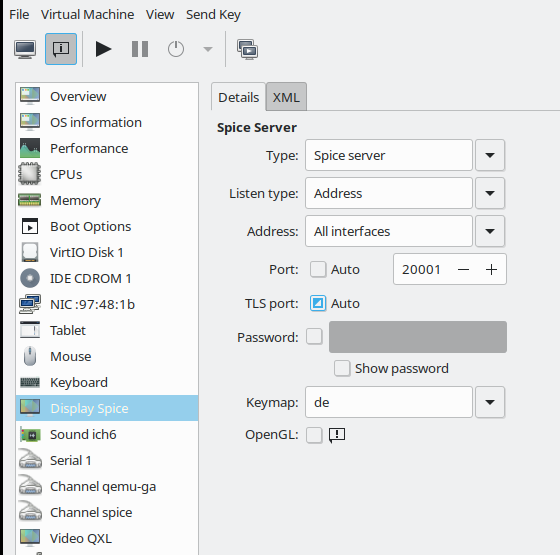
   <graphics type='spice' port='20001' autoport='no' listen='0.0.0.0' keymap='de' >    
      <listen type='address' address='0.0.0.0'/>
      <image compression='off'/>
    </graphics>
   ... 
    <sound model='ich6'>
      <address type='pci' domain='0x0000' bus='0x00' slot='0x04' function='0x0'/>
    </sound>
    ...
    <video>
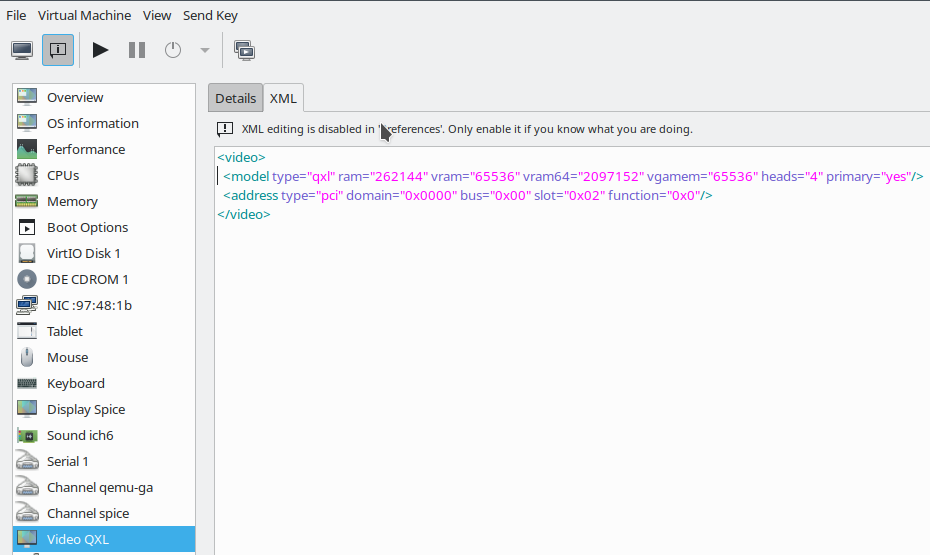
      <model type='qxl' ram='262144' vram='65536' vram64='2097152' vgamem='65536' heads='4' primary='yes'/>
      <address type='pci' domain='0x0000' bus='0x00' slot='0x02' function='0x0'/>
    </video>
...

Parameters which affect general qemu-related properties (as e.g. the “listen”-settings) will overwrite the settings in “qemu.conf”. The choice of the PCI slot numbers may be different for your guest.

You see that I defined a network (!) port for the VM by which we can access the Spice console data stream directly. I have changed this port from the default “5900” to “20001”.

You should be aware of the fact that this sets a real network port on the KVM host – i.e. a network stack is invoked when accessing the Spice console. As indicated above we can avoid the superfluous network operations by directly working with a Unix socket (Method 2), but this is the topic of the next forthcoming article.

Regarding network port definitions for a Spice console three rules apply:

  • Each of the VMs defined requires its own individual port !
  • Firewalls between the client and the VM have to be opened for this port. This includes local firewalls on the VM, on the KVM host (with rules that may apply to virtual bridges, on the client system and on any network
    components in between.
  • A TLS port has later to be configured in addition if you deactivated the “autoport” functionality – as we have done in the example above. I shall describe how to set the TLS port in a forthcoming article.)

The individual port definitions already imply the provision of a URI with port specification when starting remote-viewer (see below).

Let me briefly comment on the QXL-settings:

The QXL configuration shown above allows for 4 so called “heads” (or connectors) of the virtual graphics device. These heads support up to 4 virtual screens, if requested by the Spice-client. Note that the situation is different from real hardware consoles:
The (Spice) client (here remote-viewer) defines the number of screens attached to the VM’s console by a number of Spice client windows opened on the user’s desktop on the KVM host. The dimensions of these Spice client windows determine the dimensional capabilities of the virtual “screens”.

How the virtual screen resolution is handled afterwards may depend on the user’s own desktop resolution (on the KVM host or a remote system) AND the display settings of the VM’s guest system’s own tools for screen management. Today these are typically tools integrated into the guest’s graphical desktop (KDE, Gnome, XFCE) itself. Present Gnome and KDE5 desktops on the VM’s guest Linux system automatically adapt to the virtual display dimensions – i.e. the Spice window dimensions. But a XFCE desktop on the guest may behave differently; see below.

A short note also on the network settings for our test VM:
A virtual machine will normally be associated with a certain type of virtual network. At least if you want to use it for the provision of services or other network or Internet dependent tasks. You can configure virtual networks with virt-manager (menu “edit” >> “connection details”); but you must be root to do this:
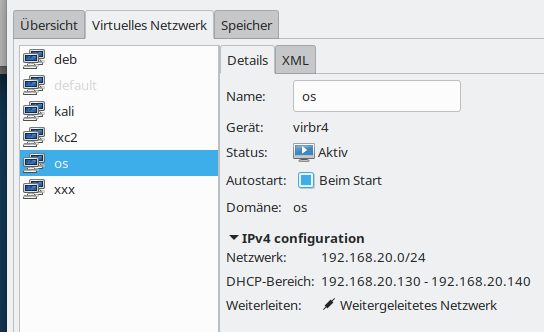
In my case I prefer a separate virtual network for which we need routing on the KVM host. This allows us to configure restrictive firewall rules – e.g, with netfilter on the host. It even allows for the setup of virtual VLANs – a topic which I have extensively covered in other article series in this blog. And when required we just can stop routing on the host.

Guest requirements
Note that the QXL-configuration must also be supported on the VM guest itself: You need a qxl-video-driver there – and it is useful to also have the so called spice-vdagent active (see the my referenced series about a qxl-setup in the last article). On the guest system this requires

  • the installation of the “spice-vdagent” package and the activation of the “spice-vdagent.service” (both on Debian/Kali and Opensuse guest systems) ,
  • the installation of the packet “xserver-xorg-video-qxl” on a Debian/Kali-guest or “xf86-video-qxl” on an Opensuse guest

Present Debian, Kali or Opensuse operative system on the KVM/Qemu guest VM should afterward automatically recognize the QXL-video-device and load the correct driver (via systemd/udev).
Regarding the (virtual) network device on the VM itself you must use the guest system’s tools for the configuration of NICs and of routes.

Preparational step D: Starting the VM – and “Where do I find logs for my VM”?

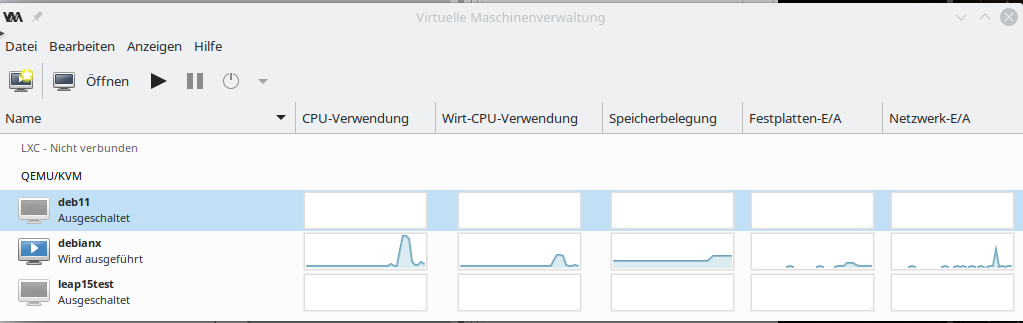
I assume that you as user “uvma” are logged in to a graphical desktop session on your KVM host “MySRV”. If you are not
yet a member of the libvirt-privileged group, you may need to use sudo for the next step. On a terminal window you then enter “virt-manager &”, select our VM “debianx” and boot it.
If you look at the process list of your KVM host you may find something like:

qemu     17662  5.5  6.8 15477660 4486180 ?    Sl   18:11   2:29 /usr/bin/qemu-system-x86_64 -machine accel=kvm -name guest=debianx,debug-threads=on -S -object secret,id=masterKey0,format=raw,file=/var/lib/libvirt/qemu/domain-1-debianx/master-key.aes -machine pc-i440fx-2.9,accel=kvm,usb=off,vmport=off,dump-guest-core=off -cpu Skylake-Client -m 8192 -overcommit mem-lock=off -smp 3,sockets=3,cores=1,threads=1 -uuid 789498d2-e025-4f8e-b255-5a3ac0f9c965 -no-user-config -nodefaults -chardev socket,id=charmonitor,fd=33,server,nowait -mon chardev=charmonitor,id=monitor,mode=control -rtc base=utc,driftfix=slew -global kvm-pit.lost_tick_policy=delay -no-hpet -no-shutdown -global PIIX4_PM.disable_s3=1 -global PIIX4_PM.disable_s4=1 -boot strict=on -device ich9-usb-ehci1,id=usb,bus=pci.0,addr=0x5.0x7 -device ich9-usb-uhci1,masterbus=usb.0,firstport=0,bus=pci.0,multifunction=on,addr=0x5 -device ich9-usb-uhci2,masterbus=usb.0,firstport=2,bus=pci.0,addr=0x5.0x1 -device ich9-usb-uhci3,masterbus=usb.0,firstport=4,bus=pci.0,addr=0x5.0x2 -device virtio-serial-pci,id=virtio-serial0,bus=pci.0,addr=0x6 -blockdev {"driver":"file","filename":"/virt/debs/debianx.qcow2","node-name":"libvirt-2-storage","cache":{"direct":true,"no-flush":false},"auto-read-only":true,"discard":"unmap"} -blockdev {"node-name":"libvirt-2-format","read-only":false,"cache":{"direct":true,"no-flush":false},"driver":"qcow2","file":"libvirt-2-storage","backing":null} -device virtio-blk-pci,scsi=off,bus=pci.0,addr=0x7,drive=libvirt-2-format,id=virtio-disk0,bootindex=1,write-cache=on -device ide-cd,bus=ide.0,unit=0,id=ide0-0-0 -netdev tap,fd=35,id=hostnet0,vhost=on,vhostfd=36 -device virtio-net-pci,netdev=hostnet0,id=net0,mac=52:54:00:93:38:4c,bus=pci.0,addr=0x3 -chardev pty,id=charserial0 -device isa-serial,chardev=charserial0,id=serial0 -chardev socket,id=charchannel0,fd=37,server,nowait -device virtserialport,bus=virtio-serial0.0,nr=1,chardev=charchannel0,id=channel0,name=org.qemu.guest_agent.0 -chardev spicevmc,id=charchannel1,name=vdagent -device virtserialport,bus=virtio-serial0.0,nr=2,chardev=charchannel1,id=channel1,name=com.redhat.spice.0 -device usb-tablet,id=input0,bus=usb.0,port=1 -spice port=20001,addr=0.0.0.0,disable-ticketing,plaintext-channel=default,image-compression=off,seamless-migration=on -k de -device qxl-vga,id=video0,ram_size=268435456,vram_size=67108864,vram64_size_mb=2048,vgamem_mb=64,max_outputs=4,bus=pci.0,addr=0x2 -device intel-hda,id=sound0,bus=pci.0,addr=0x4 -device hda-duplex,id=sound0-codec0,bus=sound0.0,cad=0 -chardev spicevmc,id=charredir0,name=usbredir -device usb-redir,chardev=charredir0,id=redir0,bus=usb.0,port=2 -chardev spicevmc,id=charredir1,name=usbredir -device usb-redir,chardev=charredir1,id=redir1,bus=usb.0,port=3 -device virtio-balloon-pci,id=balloon0,bus=pci.0,addr=0x8 -object rng-random,id=objrng0,filename=/dev/urandom -device virtio-rng-pci,rng=objrng0,id=rng0,bus=pci.0,addr=0x9 -sandbox on,obsolete=deny,elevateprivileges=deny,spawn=deny,resourcecontrol=deny -msg timestamp=on

 
You see that the user “qemu” started the qemu-process by calling “/usr/bin/qemu-system-x86_64” and adding a bunch of parameters. You may identify some parameters which stem from the settings in libvirt’s XML definition file for our special the VM (or “domain”).

Afterwards, have a look at connections with
netstat on the host; you should see that something (qemu) listens on the defined Spice port of the VM:

MySRV:/etc/libvirt/qemu # netstat -a -n | grep 20001
tcp        0      0 0.0.0.0:20001           0.0.0.0:*               LISTEN
...

Regarding logs of the VM for error analysis: You will find them in the directory ” /var/log/libvirt/qemu” (on an Opensuse Leap system).

Method 1: Local access to the Spice console with remote-viewer

Now, we are prepared to test a local access to the Spice console with remote-viewer. (As we work via a network port you may still need to open the Spice port on a local firewall – it depends of how you configured your firewall.) The format of the URI we have to specify for remote-viewer is

spice://FQDN_OR_IP:PORT_NR

with

  • FQDN_OR_IP: You have to present a host address which can be resolved by DNS or a directly an IP-address.
  • PORT_NR: The port for the Spice service – here “20001”.

For our setup this translates to

spice://localhost:20001

and thus the command

remote-viewer spice://localhost:20001

As user “uvma” we enter this command in another terminal window of our graphical desktop on the KVM host :

uvma@MySrv:~> remote-viewer spice://localhost:20001

(remote-viewer:22866): GSpice-WARNING **: 12:43:58.150: Warning no automount-inhibiting implementation available

Just ignore the warning. Then you should get a window with a graphical display of some login-screen on the VM. Details depend of course on the configuration of your VM’s operative system. In my case, I get the “gdm3”-login-screen of my virtualized Kali system:
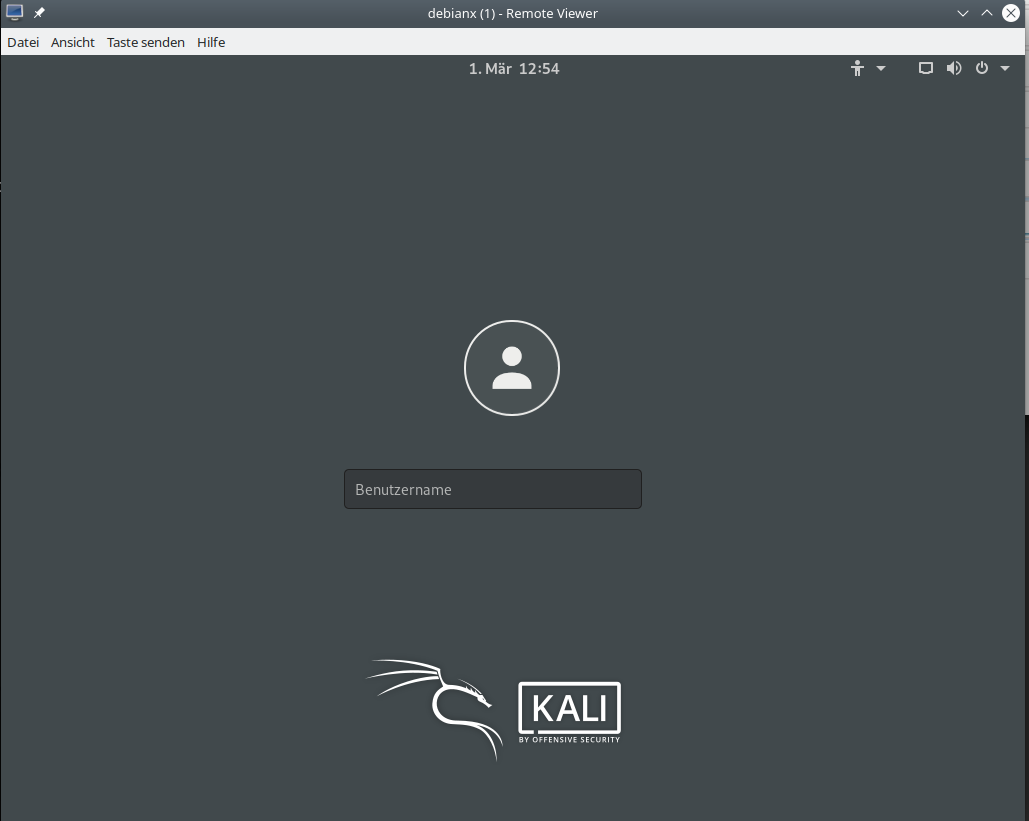
The desktop-manager may be a different one on your system. After a login to a Gnome desktop I use remote-viewer‘s menu to open a 2nd screen:
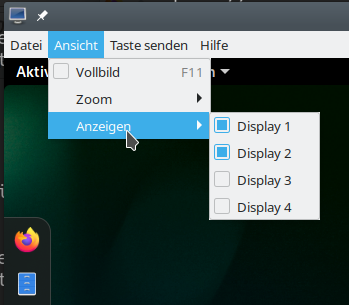
and get two resizeable screen-windows :
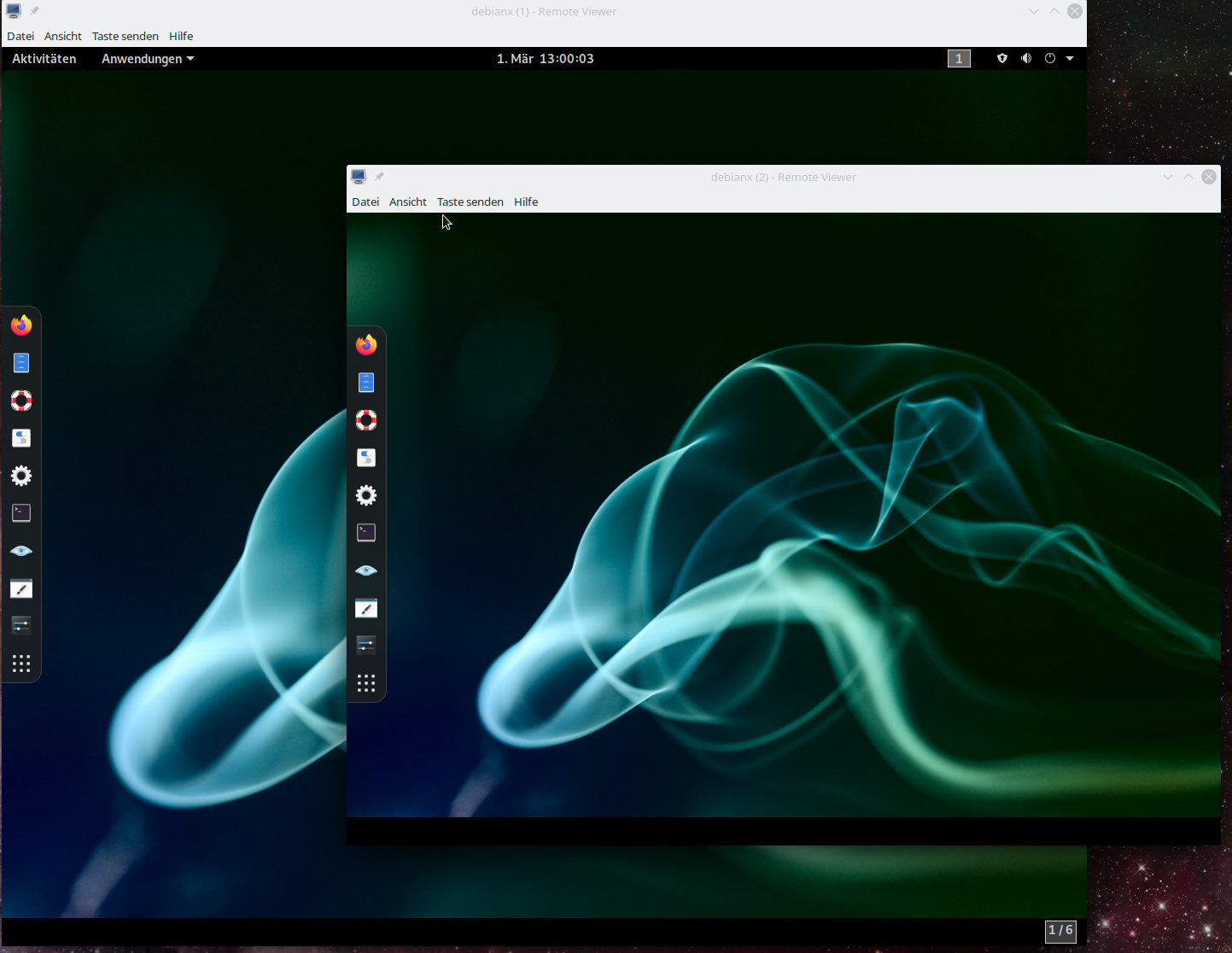
As expected! When we change the dimensions the desktop of the VM adapts to the new virtual screen sizes. Just try it out.

Will this work with a KDE desktop on the Kali guest, too? Yes, it does. KDE5 and Gnome3 can very well coexist on a Kali, Debian or Opensuse Leap15.2 (guest) system! For a Kali system you find information how to install multiple graphical desktop environments e.g. at the following links:
install-kali-linux,
kde-environment-configuring-in-kali,
kali switching-desktop-environments.

The next image shows the transparency effect of a moving terminal window on a KDE desktop of the same Kali VM – again with 2 Spice screens requested by remote-viewer:
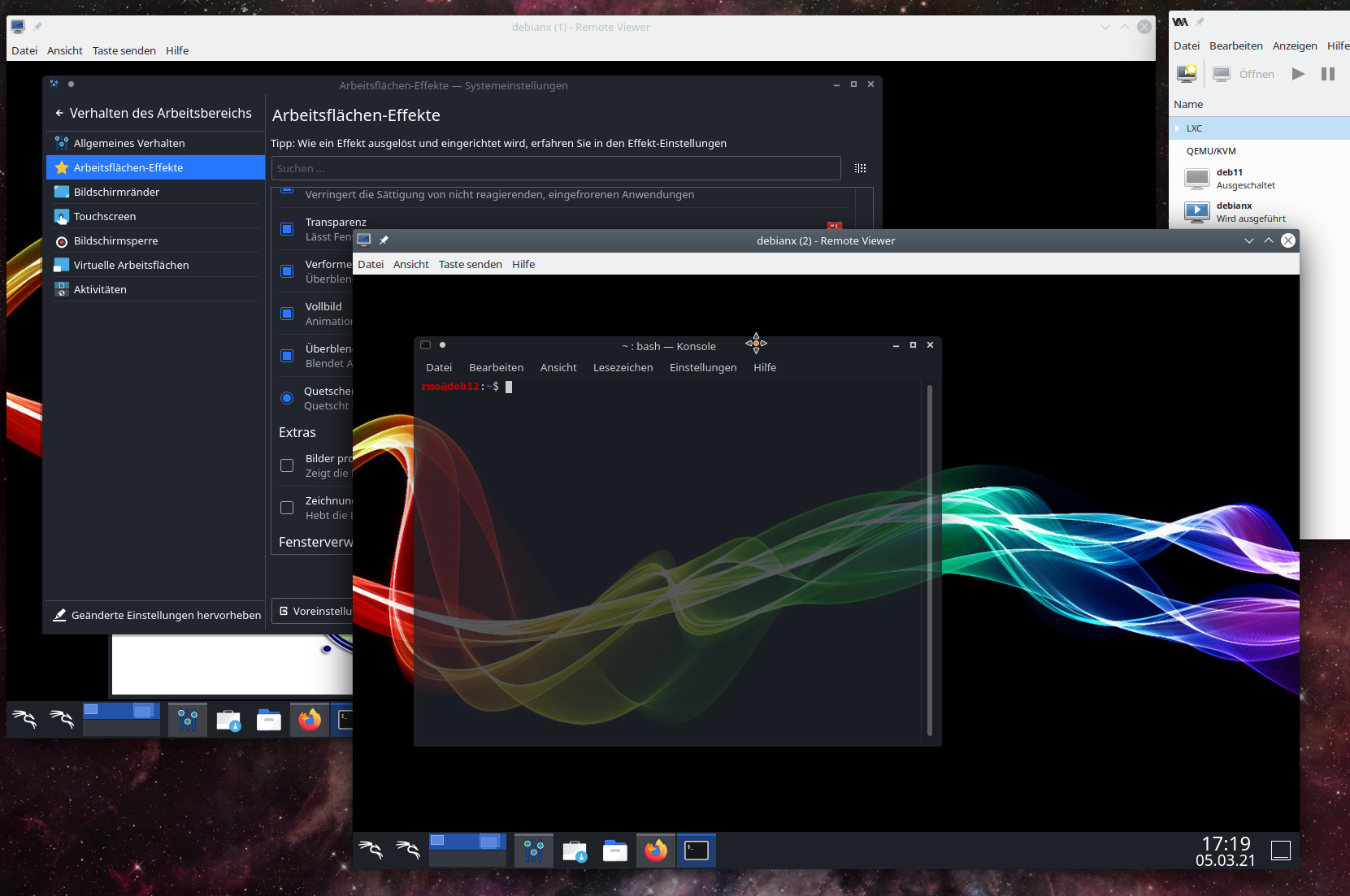
Such effects, which can also be configured on Gnome, require an active compositor on the guest’s desktop. At least when working locally on a KVM host I never got any problems with the performance of QXL/Spice and remote-viewer with an active compositor on the guest’s Gnome, KDE, and XFCE-desktops (without OpenGL acceleration). This is a bit different on a remote system and using remote-viewer over a LAN connection; see the next articles.

KDE and Gnome desktops on the VM automatically adapt to the sizes of the virtual screens. XFCE does not … XFCE is the present default desktop on Kali; so I installed after a distribution upgrade. Here some remote-viewer hints for XFCE fans on a VM with Kali/Debian and XFCE:

  • Set the number of screens in remote-viewer to 1. After installing XFCE with ” sudo apt update && sudo apt install -y kali-desktop-xfce” and a reboot we can choose “XFCE-Session” on a button of the gdm3-screen (after having entered the username). It will the boot into a XFCE session.
  • Then with the setting tool you can configure fixed resolutions for the screen displays (see below).
  • Or: Just deactivate a virtual display, resize the respective window on your host’s desktop and reactivate the virtual display again in your XFCE guest. XFCE then automatically recognizes the new screen size and adapts.
  • When logging out choose an option to save the desktop.
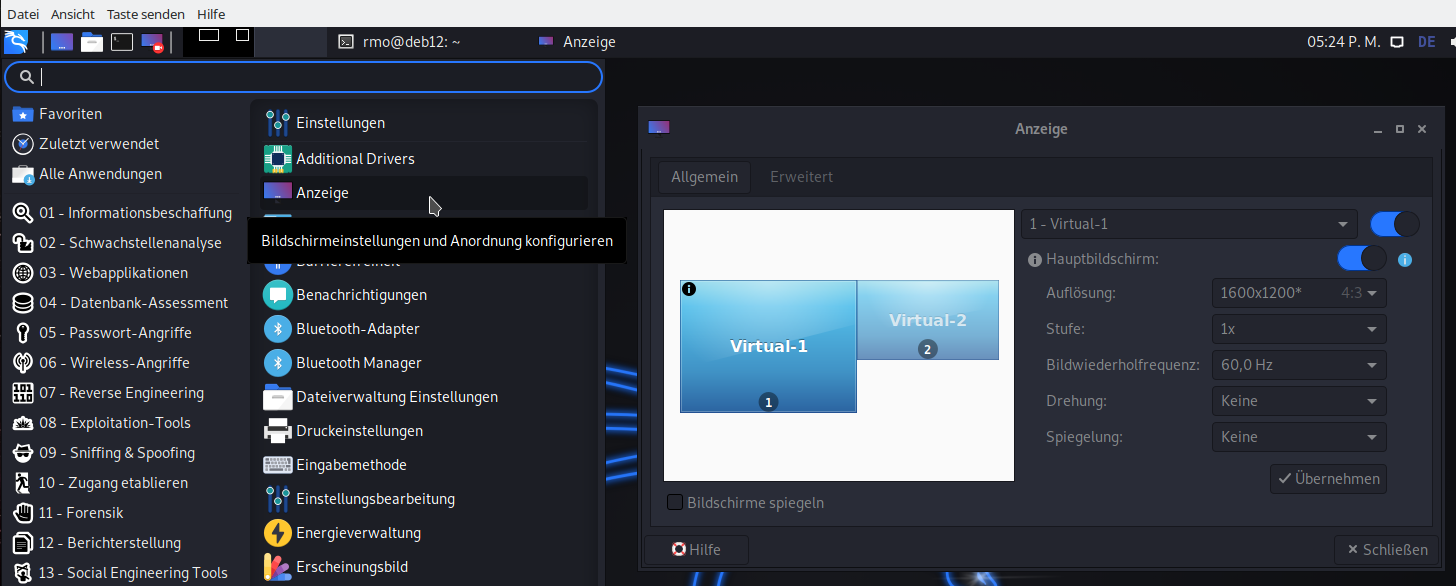
Unfortunately, XFCE has no seamless coexistence with KDE or Gome on Kali, yet. The following sequence of steps may fail:
1) Log out of a XFCE desktop-session, 2) choose a KDE or Gnome session afterwards /(this works without rebooting via the gdm menu), 3) log out of KDE/Gnome again and 4) try to restart a XFCE desktop.
On my Kali guest (on an Opensuse KVM host) I always have to reboot the guest to get a working XFCE session again, even if I did not change the screen dimensions during the KDE/Gnome session .. 🙁

Netstat reveals multiple connections corresponding to Spice channels

Using remote-viewer with a netowrk port is a really simple exercise. Most of the text above was spend on looking at the general virtualization environment. But, actually, the situation behind the scenes is not so simple. When we use netstat again, we get the following:

  
MySRV:/etc/libvirt/qemu # netstat -a -n | grep 20001
tcp        0      0 0.0.0.0:20001           0.0.0.0:*               LISTEN     
tcp        0      0 127.0.0.1:20001         127.0.0.1:46738         ESTABLISHED
tcp        0      0 127.0.0.1:20001         127.0.0.1:46750         ESTABLISHED
tcp        0      0 127.0.0.1:46734         127.0.0.1:20001         ESTABLISHED
tcp        0      0 127.0.0.1:46750         127.0.0.1:20001         ESTABLISHED
tcp        0      0 127.0.0.1:20001         127.0.0.1:46742         ESTABLISHED
tcp        0      0 127.0.0.1:46738         127.0.0.1:20001         ESTABLISHED
tcp        0      0 127.0.0.1:46740         127.0.0.1:20001         ESTABLISHED
tcp        0      0 127.0.0.1:46748         127.0.0.1:20001       
  ESTABLISHED
tcp        0      0 127.0.0.1:20001         127.0.0.1:46740         ESTABLISHED
tcp        0      0 127.0.0.1:20001         127.0.0.1:46734         ESTABLISHED
tcp        0      0 127.0.0.1:20001         127.0.0.1:46728         ESTABLISHED
tcp        0      0 127.0.0.1:20001         127.0.0.1:46744         ESTABLISHED
tcp        0      0 127.0.0.1:46728         127.0.0.1:20001         ESTABLISHED
tcp        0      0 127.0.0.1:46742         127.0.0.1:20001         ESTABLISHED
tcp        0      0 127.0.0.1:20001         127.0.0.1:46748         ESTABLISHED
tcp        0      0 127.0.0.1:46744         127.0.0.1:20001         ESTABLISHED

We find many, namely eight (8), active established connections. What do these connections correspond to? Well, they correspond to individual data exchange channels; I quote from
https://libvirt.org/formatdomain.html#video-devices:

“When SPICE has both a normal and TLS secured TCP port configured, it can be desirable to restrict what channels can be run on each port. This is achieved by adding one or more elements inside the main element and setting the mode attribute to either secure or insecure. Setting the mode attribute overrides the default value as set by the defaultMode attribute. (Note that specifying any as mode discards the entry as the channel would inherit the default mode anyways.) Valid channel names include main, display, inputs, cursor, playback, record (all since 0.8.6 ); smartcard ( since 0.8.8 ); and usbredir ( since 0.9.12 ).”

See also: spice_for_newbies.pdf

Theoretically, one should be able to use remote-viewer itself to activate or deactivate channels by setting up a “target file” for the connection; see the man-pages for more details. But on my machines it does not work neither locally not remotely. 🙁 I did not look into the details of this problem, yet ….

Testing the “one seat situation” at a Spice console

Now its time to test what I claimed in the last article: The Spice console can be accessed only by one user at a time. Let us assume, that user “uvma” is a member of the libvirt-group. Let us in addition create another user “uvmb” which is member of the group “users” on the host, only. I assume that “uvma” has opened a graphical desktop session on the KVM host (MySRV). E.g. a KDE session.

Step 1: As user “uvma” start virt-manager and boot your VM “debianx”. On a terminal window (A) use remote-viewer to open the Spice console of the VM with 2 screens. Log into a graphical desktop of the VM.

Terminal A:

uvma@MySRV:~> remote-viewer -v  spice://localhost:20001
Guest (null) has a spice display
Opening connection to display at spice://localhost:20001

(remote-viewer:20735): GSpice-WARNING **: 18:21:31.344: Warning no automount-inhibiting implementation available

Step 2: On your host-desktop open another terminal window (N) and login via “su – uvmb” as the other user. As “uvmb” now enter “remote-viewer spice://localhost:20001“.

uvma@MySRV:~> su - uvmb
Passwort: 
uvmb@MySRV:~> remote-viewer -v  spice://localhost:20001

This will at once close the open two Spice windows and after a blink of a second open up one or two new Spice windows again. The effect is clearly visible.

On terminal A we get:

Guest debianx display has disconnected, shutting down
uvma@MySRV:~> 

On terminal B we get a lot of warnings – but still the spice windows open in exactly the same status as we left them.

n

uvmb@MySRV:~> remote-viewer -v  spice://localhost:20001

(remote-viewer:20903): dbind-WARNING **: 18:25:40.853: Couldn't register with accessibility bus: Did not receive a reply. Possible causes include: the remote application did not send a reply, the message bus security policy blocked the reply, the reply timeout expired, or the network connection was broken.
Guest (null) has a spice display
Opening connection to display at spice://localhost:20001

(remote-viewer:20903): GSpice-WARNING **: 18:25:40.936: PulseAudio context failed Verbindung verweigert

(remote-viewer:20903): GSpice-WARNING **: 18:25:40.936: pa_context_connect() failed: Verbindung verweigert
Cannot connect to server socket err = Datei oder Verzeichnis nicht gefunden
Cannot connect to server request channel
jack server is not running or cannot be started
JackShmReadWritePtr::~JackShmReadWritePtr - Init not done for -1, skipping unlock
AL lib: (EE) ALCplaybackAlsa_open: Could not open playback device 'default': Keine Berechtigung

(remote-viewer:20903): GLib-GObject-WARNING **: 18:25:40.962: g_object_get_is_valid_property: object class 'GstAutoAudioSink' has no property named 'volume'
AL lib: (EE) ALCplaybackAlsa_open: Could not open playback device 'default': Keine Berechtigung

(remote-viewer:20903): GLib-GObject-WARNING **: 18:25:40.964: g_object_get_is_valid_property: object class 'GstAutoAudioSrc' has no property named 'volume'
AL lib: (EE) ALCplaybackAlsa_open: Could not open playback device 'default': Keine Berechtigung
AL lib: (EE) ALCcaptureAlsa_open: Could not open capture device 'default': Keine Berechtigung

(remote-viewer:20903): GSpice-WARNING **: 18:25:41.015: record: ignoring volume change on audiosrc

(remote-viewer:20903): GSpice-WARNING **: 18:25:41.018: record: ignoring mute change on audiosrc

(remote-viewer:20903): GSpice-WARNING **: 18:25:41.021: Warning no automount-inhibiting implementation available

(remote-viewer:20903): GSpice-WARNING **: 18:25:41.052: playback: ignoring volume change on audiosink

(remote-viewer:20903): GSpice-WARNING **: 18:25:41.052: playback: ignoring mute change on audiosink

 
The warnings are mainly due to the fact that user “uvmb” has no rights to access the Pulseaudio context of the desktop of user “uvma”. (I take care of Pulseaudio in one of the next articles …) At the first switch between the users you may only get one Spice window as “uvmb”. Choose two screens then. Afterwards you can switch multiple times between the users uvma and uvmb. Two windows get closed for the user with present Spice console session, two windows are opened for the requesting user, and so on.

Conclusion: “uvmb” and “uvma” can steal each other the Spice console with remote-viewer as and when they like.

By the way: A Spice console can be left regularly by a user by just closing the Spice client window(s). Note that this will not change the status of your desktop session on the host! This is left open – with all consequences.

Restricting access by setting a password

Let us prevent being thrown of the “seat” in front of our Spice console. As root change the <graphics> definition in VM’s definition file to

...
 <graphics type='spice' port='20001' autoport='no' listen='0.0.0.0' keymap='de' passwd='spicemeandonlyme' defaultMode='insecure'>
      <listen type='address' address='0.0.0.0'/>
      <image compression='off'/>
      <gl enable='no'/>
    </graphics>
   ... 

If you haven’t noticed: The relevant difference is the “passwd” attribute. You could have added this setting via virt-manager, too. Try it out.

Shut down and restart your VM. Any user that now wants to access the Spice console using “remote-viewer spice://
localhost:20001” will be asked for a password. You yourself, too, if you close the console and try to reopen it.
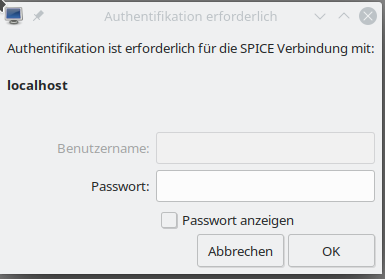
Regarding security: The password transfer will to my understanding be AES encrypted. See Daniel P. Berrangé’s blog https://www.berrange.com/posts/2016/04/01/improving-qemu-security-part-3-securely-passing-in-credentials/. But as long as the rest of the data exchange with the VM is not encrypted, this precaution measure won’t help too much against ambitioned attackers.

Conclusion

Using remote-viewer locally on a KVM host in combination with a network port to access a VM’s graphical Spice console is easy and convenient. It requires a minimum of settings. In addition it offers up to four virtual screens which you can open via a menu.
However, using a network port implies security risks. You should think about proper counter-measures first if you want to lean on “remote-viewer”. Once configured in the way described above there is no libvirt-layer or anything else which may hinder ambitious attackers to analyze the unencrypted data flow between the Spice client and the VM through the host’s network port.

In the next article

KVM/Qemu VMs with a multi-screen Spice console – III – local access with remote-viewer via a Unix socket

I want to show you how one can configure the VM such that remote-viewer can access the Spice console via a local Unix port. A network port is not opened in this approach. Security is none the less hampered a bit as we have to give a standard user some rights which normally only the “qemu” group has. But we shall take care of this aspect by using ACLs.

Links

Virtualization on Opensuse
https://doc.opensuse.org/ documentation/ leap/ virtualization/ single-html/ book.virt/index.html

Libvirtd daemon
https://www.systutorials.com/docs/linux/man/8-libvirtd/

Libvirt connection URIs
https://libvirt.org/uri.html

Find the Spice URI to use
https://access.redhat.com/ documentation/ en-us/ red_hat_enterprise_linux/7/ html/ virtualization_deployment_and_ administration_guide/ sect-Domain_Commands- Displaying_a_URI_ for_connection_to_a_graphical_display

TLS disabled
https://unix.stackexchange.com/ questions/ 148794/ how-to-create-kvm-guest-with-spice-graphics-but-tls-disabled-using-virt-install

General Kali installation
https://www.cyberpratibha.com/blog/how-to-update-and-upgrade-kali-linux-to-latest-version/

KDE, XFCE on Kali
https://technicalnavigator.in/kde-vs-xfce-which-one-is-better/
KVM/Qemu VMs with a multi-screen Spice console – I – Overview over local and remote access methods

KVM/Qemu based virtual machines [VMs] are a nice and comfortable part of my life with Linux. I use them both as dedicated entities for various services on a server host and as experimental test or work environments on my Linux workstation. Whereas the access to server VMs was dominated by SSH connections and CLI interaction so far, working with VMs on my PC was and is is characterized by graphical user-interfaces.

In the latter case we speak of desktop-virtualization: Connections to the virtual guests are set up locally via sockets (or via a network port over device “lo”) on the very same PC or workstation which also serves as KVM host. Supported by a client/server model for graphics, KVM/Qemu provides multiple capable methods for the local display of the graphical output of a VM. And by graphical output I mean a desktop environment as KDE, XFCE or Gnome.

For KVM/Qemu the combination of the so called

  • Spice display” and the Spice protocol
  • with drivers for potent virtual video devices (as QXL or Virtio)

offers a very convenient solution for the presentation of a VM’s graphical desktop with high performance – which, in my experience, is considerably faster than most VNC variants.

In addition:
With the help of certain Spice clients one can access a local VM via a desktop display which extents over up to four “screens“. All of these “screens” are displayed within scalable windows of your preferred basic desktop environment on your Linux machine – e.g. KDE, LXDE. This means that you can graphically work with a full fletched KDE desktop of the VM displayed in multiple windows within a KDE or Gnome environment on your local KVM/Qemu host (e.g your Linux workstation).

Can we get this comfort also with remote connections over a LAN? With encryption tunnels? The answer is yes – and related Qemu and Libvirt configurations are the main topics of this article series.

Why do I write about these subjects, at all? Recently, I needed to work with a KVM/Qemu guest remotely on an Opensuse Leap 15.2 server. I wanted to use a SSH tunneled connection with password authentication for a special graphical Spice client, namely “virt-viewer“. Being a bit naive, I ran into some major trouble. This in turn forced me to look closer at different possibilities for remote connections to KVM/Qemu based VM. Unfortunately, I found Opensuse’s documentation on Spice sparse – to say the best. But Spice gets especially interesting and somewhat complex with remote access methods, encryption and authorization.

In this article series I discuss some of the multiple configuration options I have experimented with. I restrict myself to Spice based solutions with the clients “virt-viewer“, “remote-viewer” and also “virt-manager“. In combination with SSH, TLS. I hope my experiences help other Opensuse Leap users to set up convenient remote solutions.

After giving some documentation links, I start with an overview over some selected remote access scenarios which are available. They are the most important ones and are all based on network ports. But, in the coming posts I will cover local access scenarios based on Unix sockets, too. And their combination with SSH.

Limitations

Unfortunately, I have to reduce expectations of readers who are out for “multi-user remote desktop solutions”. This is not what the present Spice solutions with the named clients will offer you. See below.

A topic which I will not address in the forthcoming articles is the setup of a local VM with OpenGL acceleration on the graphics device of the KVM host. With Nvidia cards and drivers this is
unfortunately a mess – and it is Nvidia’s fault, in my opinion. Very similar, by the way, to Nvidia’s EGL-based solution attempt for Wayland. All of this because of their own OpenGL handling and their declined support for GBM. So, let us not go there to avoid frustration …

Basic preparations of a KVM/Qemu VM: Documentation and guides?

I assume that you are already familiar with the basic set up and configuration of a KVM/Qemu based virtual machine – e.g. with virsh or virt-manager. If not, you will find valuable hints for Opensuse Leap systems in SuSE’s “Virtualization Guide

However, as said above, Opensuse’s documentation on virtualization does not give you much information about Spice. We only get a glimpse of it at the sections on “virsh” and “Qemu“. The information is rather spurious there; one doesn’t get a broader context. You may get a better understanding by reading introductory pages on the site “https://www.spice-space.org/“, especially the user manual
https://www.spice-space.org/spice-user-manual.html.
Regarding special configuration settings of a VM, see https://libvirt.org/formatdomain.html.

Spice with multiple screens requires a non default configuration of the VM’s QXL device

For a basic Spice setup there is not too much to do; “just” choose Spice for the display-settings of your VM and configure the VM’s QXL graphics device. Such a device corresponds to something like a virtual graphics card. Well, it sounds easy, but when I tried it myself, I had to experiment. To help others a bit: I have already discussed in depth how we can configure a KVM/Qemu guest and its QXL device such that it supports multiple scalable high-resolution screens for Spice clients. See the following articles:

KVM/qemu mit QXL – hohe Auflösungen und virtuelle Monitore im Gastsystem definieren und nutzen – I
KVM/qemu mit QXL – hohe Auflösungen und virtuelle Monitore im Gastsystem definieren und nutzen – II
KVM/qemu mit QXL – hohe Auflösungen und virtuelle Monitore im Gastsystem definieren und nutzen – III
KVM/qemu mit QXL – hohe Auflösungen und virtuelle Monitore im Gastsystem definieren und nutzen – IV

These posts were written in German; but with a little bit of goodwill one can understand the configuration settings and related commands.

An alternative today is to use a “virtio” video device in the VM’s configuration. I shall come back to this point in a later article.

What I did not cover in my previous posts on Spice was the broader spectrum of access options to a KVM/Qemu-based VM with libvirt/Space clients – both regarding local and remote connections. I only discussed how to use the “remote-viewer” client locally – despite the fact that its name already indicates something else. What I also disregarded in my articles in 2017 is the fact that
there are various (remote) access methods – direct ones and some through a libvirt-layer on the KVM-host. As always with Linux there are multiple ways to achieve your objectives :-).

However, when we use Spice instead of VNC we speak about a “one person” or a “one seat” solution.

Spice and libvirt => multiple methods to access exactly one graphical console of a KVM/Qemu based VM

What you should be aware of when you think of using Spice for a graphical access to a KVM/Qemu VM is the following:

1. The Spice protocol and the Spice display for KVM/QEMU based VMs do NOT provide a multi-user service for graphical remote terminals or remote desktop displays – at least not in their default configuration.

According to what I have read, anything in this direction still seems to be experimental. Instead:

2. We access a data stream describing the graphical contents of one or multiple screens of a console which is virtually “attached” to the VM.

Let us call this device a multi-screen Spice console of the VM.

The Spice console solution is fully integrated into the QEMU-emulator. The console screen data and related sound can, however, also be displayed and played on a remote Linux system. And here we face a point which makes the user’s life both convenient and complex at the same time :

3. The Spice console of a VM can be accessed by various protocols or protocol combinations. The Spice console is fully integrated with Qemu and directly accessible there via a (network) socket, but it is in addition accessible via libvirt components. This leads to a variety of connectivity options.

These aspects can be underestimated: Remote access for multiple screen requires sufficient band-width of the network. The second point excludes the application of Spice for multi-user scenarios. The third point opens up a range of local and remote access possibilities – some are more complicated to configure, some are more secure than others. Some options are deactivated in a default libvirt installation (not only on Opensuse Leap systems).

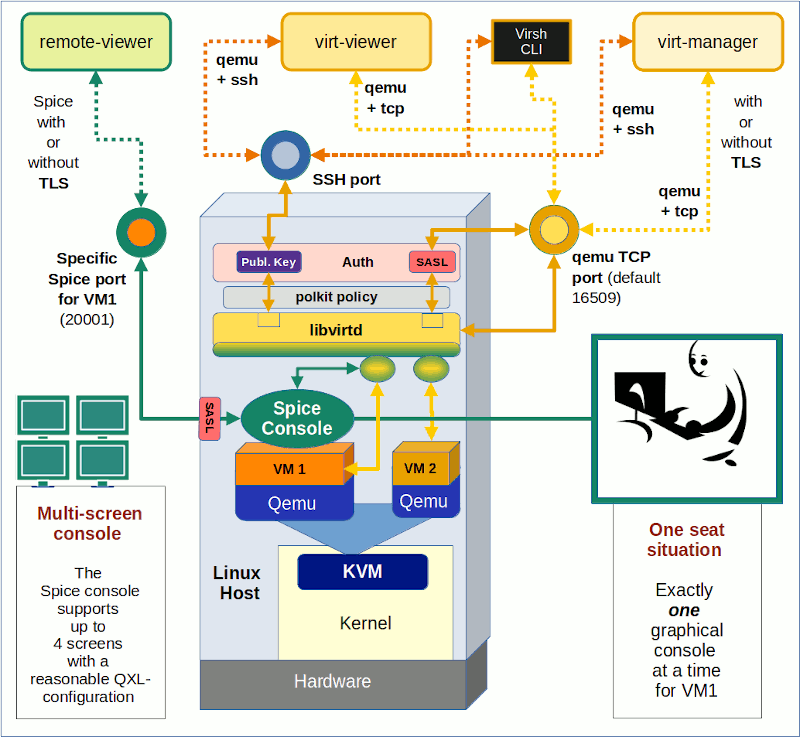
The most important connection options for standard libvirt/spice clients are summarized in the following schematic drawing.

The Spice console of a KVM/Qemu VM

The graphics shows a Linux KVM host at its center. KVM supports the VM emulator QEMU in the Linux kernel – thus making QEMU fast. Two virtual machines VM1 and VM2 are shown. VM1’s configuration includes a Spice (console) display – e.g. set up according to the following excerpt of a configuration example for a VM (done with virt-manager):

Note that the configuration item is called “display” in virt-manager (and “graphics” in the XML-configuration of a VM). I think that in the case of Spice “Console” would have been a better name. I should also warn you that the displayed configuration may lead to security risks – if not accompanied by protective measures.

Note also that “virt-manager” does not allow for a detailed QXL-configuration required for multiple screens on the displayed dialog. But you can edit the XML-files of the VM for this purpose via the second tab (or an editor;
you find the XML-files for VMs in the directory “/etc/libvirt/qemu” on Opensuse Leap systems):

The QXL configuration displayed here is an example – you may choose other parameters. (Or test out a “virtio” device; see a later article).

“One seat” console
In the lower right part of the first sketch above I have tried to express that a graphical Spice console corresponds to a “one console with one seat” situation. The console is only available for exactly one (authorized) user at a time. Note:

Any user having sufficient access rights may any time claim the console and throw you off the seat in front of the graphical console screen, if you do not secure the access to the console by a password (or other measures)!

We did not do this in the configuration example above; see the empty field for the password. I quote from the documentation:

“Spice does not support multiple connections to the same QEMU instance by default. So anybody who will connect to the same host and port can simply take over your session. You can solve this problem by using ticketing.” (see: https://www.spice-space.org/spice-user-manual.html)

“Ticketing” means setting a password to access the VMs console screen; but still anyone knowing the password could claim the console – a password is no real solution for a multi-user situation. To say it clearly:

If your objective is to establish something like a multi-user graphical access to a KVM/QEMU-based virtual machine with a full desktop display for each user (i.e. a “remote desktop solution”), then think about something like a headless graphical server configuration of the KVM guest. On a Linux VM, you can achieve this by either implementing a X2GO server, a commercial NoMachine server, a VNC server-variant or even XRDP. Some of these solutions can easily be combined with SSH.
And do not forget: In a LAN with sufficient bandwidth “ssh -X” may already serve most practical purposes.

But in many cases a local or remote “one seat situation” with a full graphical desktop may be sufficient. Now, let us look at the other parts of the drawing.

Different access options to the Spice console of a KVM/Qemu-based VM

There is a multitude of options to connect to the Spice console (https://www.spice-space.org/spice-for-newbies.html). We shall describe them briefly in this first article. In forthcoming articles we shall have a closer look at each of them.

Option 1: Simple connection with “remote-viewer” via a Spice (network) port

The Qemu-emulator is able to handle requests over the Spice protocol on its own, i.e. without the invocation of special libvirt-support. The Spice solution offers connections to the console either on the basis of a pure Unix socket (local solution) or a network port (remote solution).

A network oriented solution, which can be realized with the Spice client “remote-viewer” is depicted on the left side of our central sketch:

You access the Spice console of a specific VM directly via a specific network port. Spice ports have to be configured independently for each of the VMs. I.e., if you have 2 VMs whose Spice consoles you want to access independently then you need to define two different ports for the Spice consoles. Actually, you won’t be able to start a VM which has the same port associated with its Spice console as another already running VM.

nProperties of a remote-viewer connection over a network port:

  • Default port? The standard Spice port is 5900 (which is also the port used by VNC). In the example displayed above I instead used port 20001. (Do not forget to open your firewalls for your chosen ports!)
  • Security by encryption? The connection to the port is not secured by any encryption. However, it is possible to define an additional specific TLS-secured port. We shall cover spice + TLS protocol combinations in another article.
  • User authentication on the KVM server host? Can optionally be achieved via SASL.
  • Preferred Spice client? The Spice client which uses the Spice protocol directly and without libvirt is “remote-viewer“.
  • Works locally and/or remotely? Both.

Some additional hints:

In some old articles or posts on the Internet you may find descriptions of “virt-viewer” together with URIs like “spice://host:5900”. This does not work any more – at least on my systems.

By setting proper attributes to the VM, we can in addition enforce that it only accepts secured connections. For those who are eager to experiment already: Where do we learn something about such machine specific settings in XML-format? The answer is:
https://libvirt.org/formatdomain.html

Option 2: Connection with “virt-viewer” or “virt-manager” via libvirtd and a defined TCP port

Besides “remote-viewer” there is another Spice client called “virt-viewer“. This client is of special use when you work on a KVM host with multiple VMs. What some admins do not know is that it can be used via a simple socket with a specific TCP-port. You do not need SSH or TLS, if you can disregard security. This corresponds pretty much to what we got with remote-viewer and a Spice port. The difference is that we access the socket via the mediation of libvirtd components:

virt-viewer requires URIs which specify the target hypervisor for the libvirtd daemon – in our case “qemu”. Such URIs differ from URIs used for remote-viewer as they always contain a two fold protocol definition.

We shall apply such URIs in a later article. In addition this access method requires a special (non-default) configuration of the libvirt-daemon. Among other things, you, of course, have to define the port. The ability to listen to an insecure TCP port is normally deactivated in the libvirtd configuration; we have to activate it manually. This is something we shall have a closer look at.

Unencrypted access to the Spice console via a special libvirtd port may be a useful solution for KVM guests sitting in a secured physical LAN-segment or behind a virtual bridge/firewall in a virtualized LAN-segment of the KVM host.

Properties of a virt-viewer connection via a TCP port

  • Default port? 16509.
  • Security by encryption? The connection to the port is not secured by any encryption. However, we have other options for virt-viewer to connect to the VM via SSH or TLS secured connections. See below.
  • Preferred Spice client?: virt-viewer (You cannot provide a valid URI to remote-viewer this way). However, this connection option also works with “virt-manager” (and its included graphical access to the Spice console).
  • User authentication? Can be achieved via SASL.
  • Works
    locally and/or remotely?
    Both.

on the KVM host.
Note that the access to libvirtd must be allowed for the user invoking the connection! This can be configured on Opensuse Leap systems by some policy and/or libvirtd settings.

Option 3: Connection with “virt-viewer” or “virt-manager” via SSH and libvirtd

A very convenient method to get a secure connection with Linux is to use SSH encryption. Therefore, we are not astonished to find that “virt-viewer” can be combined with SSH. This connection method also requires a special URI-format. And again: access to libvirtd must be allowed for the user using this type of connection.

Properties of a virt-viewer connection via a SHH port:

  • Default port? 22 or otherwise the defined SSH-port on your system.
  • Security by encryption? SSH.
  • Preferred Spice client?: virt-viewer (You cannot provide a valid URI to remote-viewer this way). However, this connection option also works with “virt-manager” (and its included graphical access to the Spice console).
  • User authentication? Via SSH (preferably public-key authentication)
  • Works locally and/or remotely? Both.

Both options 2 and 3 work with virt-manager, too. However, virt-manager does not provide you with a multi-screen access to the Spice console.

Note that a combination of SSH and remote-viewer is also possible; but then you would open a “SSH -X” connection first and run remote-viewer on the KVM/Qemu host and not on the network client system. I will present such a solution in a later article, too.

Conclusion

The Spice console of KVM/Qemu offers access to a graphical desktop of a virtual machine guest. Spice clients as “remote-viewer”, “virt-viewer” and “virt-manager” can be used locally and remotely. The first two clients offer multiple screens – but all clients provide a one seat solution, only. This may, however, be sufficient for many use cases. There is a variety of local and remote access methods. Connections can be secured by TLS or SSH encryption.

In the next article

KVM/Qemu VMs with a multi-screen Spice console – II – local access with remote-viewer via a network port

I shall have a closer look at a local connection from the “remote-viewer” client to the Spice console of a VM.

Links

Spice console and Spice protocol
https://linuxhint.com/ configure_ spice_server_ debian_10/
https://www.spice-space.org/ spice-user-manual.html
https://www.spice-space.org/ spice-for-newbies.html

Activate spice
https://www.linux-kvm.org/page/SPICE
https://linux-blog.anracom.com/2017/08/15/kvmqemu-mit-qxl-hohe-aufloesungen-und-virtuelle-monitore-im-gastsystem-definieren-und-nutzen-iv/
https://octetz.com/docs/2020/2020-05-06-linux-hypervisor-setup/

Nvidia 🙁
https://www.phoronix.com/scan.php?page=news_item&px=XDC2016-Device-Memory-API

Further
articles in this series

KVM/Qemu VMs with a multi-screen Spice console – VIII – VM and user specific restrictions for remote-viewer connections – iptables and sudo
KVM/Qemu VMs with a multi-screen Spice console – VII – remote-viewer, qemu and SASL authentication
KVM/Qemu VMs with a multi-screen Spice console – VI – remote access with remote-viewer and TLS encryption
KVM/Qemu VMs with a multi-screen Spice console – V – remote access via remote-viewer, a network port and a SSH-tunnel
KVM/Qemu VMs with a multi-screen Spice console – IV – remote access via SSH, remote-viewer and a Unix socket
KVM/Qemu VMs with a multi-screen Spice console – III – local access with remote-viewer via a Unix socket
KVM/Qemu VMs with a multi-screen Spice console – II – local access with remote-viewer via a network port

Upgrade of a server host from Opensuse Leap 15.1 to 15.2 – II – smartd configuration, 3ware controllers, mdadm RAID

During the upgrade of one of my server systems from Opensuse Leap 15.1 to 15.2 I noticed that the smartd-daemon did not start successfully. Logs revealed that the upgrade itself was NOT the cause of this failure; it is nevertheless a good occasion to briefly point out how one can configure the smartd-daemon to keep an overview over the evolution of disk properties on a Leap 15.X system – even when the disks are an integral part of one or more Raid-arrays. “Overview” is also a reason why I use “rsyslog” in addition to a pure systemd journal log to track the SMART data.

A problem with a 3ware based Raid array

The main cause of the smartd-failure on the upgraded server was an active line with the command “DEVICESCAN” in Opensuse’s version of the configuration file “/etc/smartd.conf”. As the command’s name indicates, the system is scanned for disks to monitor. Unfortunately, smartd did not find any SMART enabled devices on my server.

Feb 05 17:01:55 MySRV smartd[14056]: Drive: DEVICESCAN, implied '-a' Directive on line 32 of file /etc/smartd.conf
Feb 05 17:01:55 MySRV smartd[14056]: Configuration file /etc/smartd.conf was parsed, found DEVICESCAN, scanning devices
Feb 05 17:01:55 MySRV smartd[14056]: Unable to monitor any SMART enabled devices. Try debug (-d) option. Exiting...
...

Well, this finding was correct. All internal disks of the server were members of Raid arrays on elderly 3ware controllers. 3ware controllers are supported by the Linux kernel – in my case via a module “3w_9xxx”. During the installation an Opensuse Leap system the driver module was automatically added to the configurations of GRUB, the initramfs and the list of modules loaded by the eventually booted kernel. Upgrades have respected the configuration so far.

But with hardware RAID controllers the attached individual disks are NOT directly accessible to standard “smartd” directives or a standard plain “smartctl” command. You need to a special options. The HW-RAID-array is seen by the Linux system and smartd as a block device – without an inner structure. And the block device corresponding to the HW-controlled RAID-array has no SMART capabilities – which is, of course, very reasonable. Thus DEVICESCAN fails.

I wondered a bit why I had not seen the problem on the same system with Leap 15.1. Actually, this was my fault: Looking into a backup I saw in the last logs of the host during its time with Leap 15.1 that the problem had existed already before the upgrade – and was caused by an old, original “smartd.conf”-file from SuSE with which I had accidentally overwritten my own version of “smartd.conf”. Stupid me! But the really concerning thing was that I should have noticed the consequences in some logs. But, since I became a almost full-time employee I have been too lazy to work regularly with specific filter-options of systemd’s command “journalctl” – so I missed the relevant messages within the flood of messages in the journal. Time to reactivate rsyslog to get specific information into specific files – see below.

Anyway … It is reasonable that the failure of a standard DEVICESCAN should lead to a failure of the smartd service. The attentive admin thus gets a clear hint that his intention to watch disk health variables is not working as expected – even if the “smartd.conf” should contain other valid lines. The comments in “/etc/smartd.conf” clearly say:

# The word DEVICESCAN will cause any remaining lines in this configuration file to be ignored: 
# it tells smartd to scan for all ATA and SCSI devices. DEVICESCAN may be followed by any of the
# Directives listed below, which will be applied to all devices that are found.
#  
# Most users should comment out DEVICESCAN and explicitly list the devices that they wish to monitor.

I changed the line breaks a bit to stress the last statement. The obvious
and trivial solution in my case was to comment out the DEVICESCAN-line and activate some explicit statements for the individual disks in the 3ware array. To make things a bit more interesting, let us look at a different system MySYS which uses a combination of 3ware controlled hard-disk arrays and mdadm controlled SSD-arrays.

Off-topic:
The server host discussed above does not require a particular high disk throughput. Storage capacity in TB is more important. Actually, I would never buy a 3ware or LSI controller again for a semi-professional Linux machine. Too much money for a too low performance. With Linux you are certainly better off with mdadm and SW-RAID on a modern multi-core-processor. The general impact on an i7 or i9 on the overall performance is negligible in my experience. Especially, when you have a lot of fast RAM. In addition mdadm gives you much (!) more flexibility. You can, for example, build a set of multiple RAID-arrays working in parallel with one and the same stack of disks/SSDs by assigning different partitions to different distinct arrays – which may even be of a different type. But this is another story …

Entries for disks attached to 3ware controllers and SSDs in mdadm-Raid-arrays in the “/etc/smartd.conf” file

In the system MySRV I use a configuration

  • of multiple mdadm RAID-arrays consisting of assigned SSD-partitions of a stack of 4 SSDs
  • and 4 conventional hard-disks attached to a 3ware controller, forming a RAID 10-array.

In addition the host contains a further stand alone SSD.

For disks attached to a 3ware-controller we need a special form of the directives in the “smartd.conf”-file. Actually, some examples for such directives are given in a 3ware-related commentary section of “/etc/smartd.conf”. You may find something directly suitable for your purposes there.

What about devices which are members of mdadm-controlled SW-Raid arrays? Well, the nice thing is that in contrast to HW-controlled Raid-disks the SMART-daemon can access SSDs (or hard disks) on a mdadm-controlled SW-Raid-array directly! Without any special options! Actually, folks familiar with “mdadm” would have expected this for very basic reasons … But this is yet another story … We just accept the fact as one example ofthe power of Linux.

Thus, for my special system MySYS I just disabled the line with “Devicescan” and inserted the following lines into “/etc/smartd.conf”:

...
DEFAULT -d removable -s (S/../../7/03)
...
#DEVICESCAN
...
# Monitor SSDs contributing to different mdadm based SSD-Raid-arrays via (vertical) stacks of partitions 
/dev/sda -d sat -a -o off
/dev/sdb -d sat -a -o off
/dev/sdc -d sat -a -o off
/dev/sdd -d sat -a -o off

# Monitor additional stand alone SSD 
/dev/sde -d sat -a -o off

# Monitor HDs attached to 3ware controller with a Raid 10 configuration 
/dev/twa0 -d 3ware,0 -F samsung -a -o off
/dev/twa0 -d 3ware,1 -F samsung -a -o off
/dev/twa0 -d 3ware,2 -F samsung -a -o off
/dev/twa0 -d 3ware,3 -F samsung -a -o off
...

Disclaimer: Never copy the statements and later discussed smartctl-commands above without a thorough study of the literature and documentation on smart, smartctl and smartd. Check the preconditions of applying the directives and commands carefully with respect to your actual HW-/SW-configuration and the type of SSDs and hard disks used there! You have to find out about the correct settings for your system-configuration on your own.
Warning: The effects of the “-a” option and especially of the planned automatic disk tests initiated via the “DEFAULT”-statement may be different for SCSI or SATA-disks. Some options may even lead to data loss on older Samsung disks. I will not take any responsibility
for any problems caused by applying the settings displayed above to YOUR systems. Get advice of a professional regarding RAID-configurations and smartctl ahead of any experiments.

Having this said, the expert sees that I plan short self tests of the disks on every Sunday at 3 AM. Such tests will temporarily reduce the performance of the affected disks and as a consequence also of the various RAID-configurations the disk or any of its partitions might be a part of. At least on my system such a test will, however, not render the defined RAID-arrays unusable.

I could test this for a SATA-device and mdadm e.g. by using a suitable smartctl-command as

smartctl -t short /dev/sdc

and watching the continuing operation of a related RAID-array by

mdadm -D /dev/mdxxx

The corresponding smartcl-command for a 3ware RAID-disk would e.g. be

smartctl -t short /dev/twa0 -d 3ware,3 -F samsung.

As said above: Be careful with such tests on productive systems.

By the way: Only for the 3ware disks you may get an information about the starting of the test in a smartd related log-file (see below). If no errors are found, the logs will NOT show any special message.

At least on an Opensuse system the other settings and options for the various disks are discussed and explained in the commentary sections of the file:

#   -d TYPE Set the device type: ata, scsi, marvell, removable, 3ware,N, hpt,L/M/N
#   -o VAL  Enable/disable automatic offline tests (on/off)
#   -H      Monitor SMART Health Status, report if failed
#   -l TYPE Monitor SMART log.  Type is one of: error, selftest
#   -f      Monitor for failure of any 'Usage' Attributes
#   -p      Report changes in 'Prefailure' Normalized Attributes
#   -u      Report changes in 'Usage' Normalized Attributes
#   -t      Equivalent to -p and -u Directives
#   -a      Default: equivalent to -H -f -t -l error -l selftest -C 197 -U 198
#   -F TYPE Use firmware bug workaround. Type is one of: none, samsung

and

# Monitor 4 ATA disks connected to a 3ware 6/7/8000 controller which uses
# the 3w-xxxx driver. Start long self-tests Sundays between 1-2, 2-3, 3-4, 
# and 4-5 am.
# NOTE: starting with the Linux 2.6 kernel series, the /dev/sdX interface
# is DEPRECATED.  Use the /dev/tweN character device interface instead.
# For example /dev/twe0, /dev/twe1, and so on.
#/dev/sdc -d 3ware,0 -a -s L/../../7/01
#/dev/sdc -d 3ware,1 -a -s L/../../7/02
#/dev/sdc -d 3ware,2 -a -s L/../../7/03
#/dev/sdc -d 3ware,3 -a -s L/../../7/04

On my system (with one a 3ware controller and mdadm Raid-arrays) the smartd daemon started without any problems afterwards.

Configure rsyslog to write smartd-information into a distinct separate log-file

Old fashioned as I am, I use rsyslog aside systemd’s journal-logging. rsyslog can easily be configured to write log entries for selected daemons/processes into predefined separate log-files. Such files can directly be opened as they are plain text-files. Let us configure rsyslog for the smartd daemon:

  • Step 1: We create an empty file “/var/log/smartd.log” (as root) on the host in question by the command

    “touch /var/log(smartd.conf”

  • Step 2: Change rights by “chmod 640 /var/log/smartd.log”
  • Step 3: Add the following line to the file “/etc/rsyslog.conf” (close to the end)

    :programname, isequal, “smartd” /var/log/smartd.log

  • Step 4: Restart the rsyslog-daemon by “systemctl restart rsyslog”

You
surely have noticed that this is for local logging. But it is easy to adapt the settings to logging on remote systems.

What do smartd-logs look like?

Depending on your hardware you may get specific messages for your devices at the start of the smartd-daemon. Depending on the execution of scheduled self-tests you may get some messages about starting such test. After some time you should (hopefully) see successful messages regarding short or long self-tests – depending on your settings. In my case:

2021-02-11T14:29:43.511950+01:00 MySYS smartd[1723]: Device: /dev/sda [SAT], previous self-test completed without error
...
2021-02-11T14:29:44.026256+01:00 MySYS smartd[1723]: Device: /dev/twa0 [3ware_disk_00], previous self-test completed without error
...

In addition that you will get continuous information about changes of variables describing the health-status of your disks. In my case only the variation of the temperature due to changing airflow is shown:

...
2021-02-11T14:59:43.340341+01:00 MySYS smartd[1723]: Device: /dev/sda [SAT], SMART Usage Attribute: 190 Airflow_Temperature_Cel changed from 76 to 78
2021-02-11T14:59:43.350339+01:00 MySYS smartd[1723]: Device: /dev/sdb [SAT], SMART Usage Attribute: 190 Airflow_Temperature_Cel changed from 77 to 78
2021-02-11T14:59:43.353660+01:00 MySYS smartd[1723]: Device: /dev/sdc [SAT], SMART Usage Attribute: 190 Airflow_Temperature_Cel changed from 77 to 79
2021-02-11T14:59:43.357007+01:00 MySYS smartd[1723]: Device: /dev/sdd [SAT], SMART Usage Attribute: 190 Airflow_Temperature_Cel changed from 77 to 79
2021-02-11T14:59:43.360136+01:00 MySYS smartd[1723]: Device: /dev/sde [SAT], SMART Usage Attribute: 190 Airflow_Temperature_Cel changed from 77 to 78
...

Conclusion

If for some reason the “smartd”-daemon and the related service does not start on a Linux host with Opensuse Leap 15.2 it is easy to get it running again. Even, when your disk devices are members of RAID arrays. The configuration file “/etc/smartd.log” contains a lot of hints how to set up reasonable directives regarding various HW-RAID-controllers supported by the kernel. A really good thing is that we do not need any special commands or options regarding disk devices whose partitions are members of mdamd-controlled SW-RAID arrays.

Links

https://linux.die.net/man/5/smartd.conf
https://linux.die.net/man/8/smartd

https://www.linux.com/topic/desktop/monitor-sata-and-ssd-health-smart/
https://linuxconfig.org/introduction-to-the-systemd-journal
https://www.debugpoint.com/2020/12/systemd-journalctl/

Upgrade of a server host from Opensuse Leap 15.1 to 15.2 – I – a problem with Apache2/MPM and PHP7

The official support of Opensuse Leap 15.1 is about to end. Time to upgrade some servers to Opensuse Leap 15.2 in my home-office. While the basic upgrade of the OS was a smooth process I stumbled across some problems and challenges with a few services. I shall cover these problems step by step in this series – and hope that my remarks and hints will help some of my readers.

A central server system with network related services and with virtualized guests

One of the two central server systems in my LAN provides DHCP-, DNS-, OpenLDAP-services plus an internal HTTP-service (based on Apache2) for development work. Its list of services in addition comprises NFS, Samba and some SVN-services for multiple purposes, among others as backup space for other systems. The host also works as a CUPS server – offering some pre-defined queues for other Linux-systems in the LAN.

The system also serves as a KVM- and LXC-host for some virtualization guests: A KVM based LAMP/GIT-server for production data, a KVM based mail-server, a KVM based Kali-system plus some LXC-containers for databases. Some LVM volumes on this server are encrypted and all disk-space is based on Raid configurations – both with mdadm for different SSD-raids and with a 3ware controller for a standard hard disk based raid10. This server is also critical as it separates its internal virtual network structure from real LAN segments by a packet-filter. It must cover routing tasks.

I run this Linux host with Opensuse Leap – not SLES. So, it is a good test object for the cleanliness of Opensuse’s upgrade practices. Actually, I am always a bit nervous during upgrade. Fortunately, the HW is from the time of my freelance business – and thus safe and proven to use. It contains a passively cooled Nvidia card, for which the community repositories still provides kernel modules. The 3ware drivers also have worked reasonably well over the last 4 years. So, drivers at least should not pose any problems.

To make a long story short: The basic upgrade did not cost me much headache. I outline the upgrade procedure below – and then turn to the problems I have seen in its wake.

Backup and basic upgrade procedure

It should be clear that a server as the described one requires some regular backup routine for important data. I shall not elaborate on this topic here. Regarding the backup of the “/”-partition I use an approach described in the article
Upgrade workstation from Opensuse Leap 15.1 to Leap 15.2:

I.e. I copied the whole partition to a different, external hard-disk and afterwards in addition to a free partition on the server system itself – all with the help of the “dd”-command. You may do the same with other partitions which you want to re-create quickly in case of an emergency during upgrade.

Regarding the upgrade itself I cling to the procedure described by the Linux Kamarada; see the article mentioned above. (The required work with the Opensuse repositories is much simpler for my servers than for my workstations and laptops as I use much less repositories; the only repositories aside the Update repository for the present Leap version are SUSE’s “Security” and “Network” repositories plus the Nvidia community repository. I have made good experiences with this habit over the last 10 years.)

The upgrade worked almost perfectly. Some quick checks verified that my virtualized (and not yet upgraded) virtual guest systems could be started and worked as expected. The same was true for the slapd-, smb-, the wsdd- and the dns- (=named-) service.

But, there were also exceptions which required additional work:

  • Graphics Failure: The X-system did not start and the “graphical target” of systemd could not be reached directly after the system
    upgrade (expected).
  • Service failure: The Apache2 service did not start (unexpected).
  • Service failure: The smartd-service did not start (unexpected, but probably due to an overwritten configuration file).
  • Required Adjustment: The CUPS libraries had to be changed to Opensuse’s “Printing” repository to become consistent with other Linux hosts which use printer queues on the server (expected).
  • Required Adjustment: The rkhunter-configuration had to be adjusted (expected).
  • Required Adjustment: A specific KDE-settings had to be adjusted to allow for screen-saving functions – even for SDDM screens without started KDE-sessions (unexpected).
  • Required Adjustment: “virt-viewer” access via “qemu+ssh” to some clients posed grave problems (unexpected). These problems may have existed already before, but are worth a description.

I cover the first 2 points in this article. Solving the graphics problem is a short story. The explanation and solution of the problem with the Apache service, however, requires some space. But I hope the information provided in the related text is interesting for some readers who are no experts in Opensuse’s handling of the Apache service.

Nvidia – X-Windows

You may ask: Why X11 on a server at all? Good question; well, as a semi-professional in server-administration, I think that one can do some things faster than without. Normally, I access the server remotely via ssh or “ssh -X”. But during my years with SLES and Opensuse I experienced some situations during which I was happy to be able to access the server directly on a graphical console; certainly not a popular view among profs. Anyway – the Nvidia/X-Window topic is a standard problem and easy to solve:

I just had to reinstall the required drivers from the Nvidia repository (via the CLI-based YaST), perform a “mkinitrd” afterwards and restart the system.

However, I nevertheless recommend not to boot the server system into the graphical systemd target, if not required. The relevant command to set the default target is

systemctl set-default multi-user.target

See the related link at the end of this post.

Off topic: If you prefer KDE as a graphical desktop environment do not even try to switch to Wayland on Leap 15.2. In my experience this is only a frustrating endeavor – as we still do not have Plasma 5.20 available but Plasma 5.18 (see a related link at the end).

Apache does not start due to a problem with “mod_php7” and MPM

Let us turn to something more interesting: An Apache problem with the current PHP-module and MPM-settings.

I admit, I am a bit old-fashioned. Most developers and admins, today, probably use Nginx and in addition Fast-CGI in combination with PHP. I, instead, cling to an old Apache installation for LAMP-services on the server named above. One reason is that I need some compatibility with things I did from 2013 and 2016 – aside of changes of PHP over the years.

So, whilst upgrading Opensuse my Apache 2.4 and PHP installations get upgraded, too.

When one activates the php-Apache-module by “a2enmod php” the presently installed version of the php-Apache-module gets loaded – on Leap 15.2 this is provided by mod_php7.so corresponding to PHP 7.4.6. (You can verify this with the command “php -v”). Using “a2enmod php7” would give you no different result. (Opensuse, unfortunately, does not support the parallel installation of multiple, different PHP-versions. See the critics in the conclusion-section.)

All upgrades from Leap 42.2 to 42.3, 15.0 and eventually to Leap 15.1 went well; but this time the Apache service did not start. Trying “rcapache2 start” followed by “rcapache2 status” (or equivalent systemctl status apache2.service) gave me an error message:

….
[php7:crit] [pid 16004:tid 139738320386304] Apache is running a threaded MPM, but your PHP Module is not compiled to be threadsafe. You need to recompile PHP.
Jan 26 19:15:39 MySRV start_apache2[16004]: AH00013: Pre-configuration failed
Jan 26 19:15:39 MySrv systemd[1]: apache2.service: Main process exited, code=exited, status=1/FAILURE
….

I remembered vaguely that I had experimented with MPM and prefork settings on Leap 15.1, but recompile PHP? With what options? A strange error message!

Confusion when comparing to a seemingly similar Apache2 installation on a different system

I cross-checked with a similarly configured Apache2 installation (with PHP7, but different virtual domains) on one of my my Leap 15.2 workstations; let us call it “MyWS” and the upgraded server “MySRV”. Confusingly, Apache2 started on MyWS without any complaints.

You may suspect now that I may have used different Apache2 configuration directives in “/etc/sysconfig/apache2” or the files in folder “/etc/apache2/” and sub-folders – without being aware of it. But no: I checked and eliminated even small, irrelevant differences for tests. The problem on the server MySRV remained.

When I looked at the Apache2-related processes on the workstation MyWS with “ps aux | grep https” I saw that Apache2 had been started in a pre-forked way. As I was used to …. I got multiple forked processes like

....
wwwrun    7043  0.0  0.0 236180 10488 ?        S    10:41   0:00 /usr/sbin/httpd-prefork -DSYSCONFIG -DSSL -C PidFile /var/run/httpd.pid -C Include .... 
.....
wwwrun    7045  0.0  0.0 236180 10488 ?        S    10:41   0:00 /usr/sbin/httpd-prefork -DSYSCONFIG -DSSL -C PidFile /var/run/httpd.pid -C Include ... 
... 

The interesting thing here is the indicated program “/usr/sbin/httpd-prefork”. Note that it is NOT “usr/bin/httpd”; I shall come back to this point later. The process information was of course consistent with startup information provided by “rcapache2 status” or equivalently by “systemctl status apache2”.

It took me a while to find out what was going on and what I had to do. Whilst searching the Internet and experimenting with Apache I passed some interesting information about details of the Apache-installation on Opensuse which may be interesting for others, too.

MPM methods on Apache 2.4

The error message indicated that the whole problem had to do with MPMs – “Multi-Processing-Modules”, i.e. the ability of Apache to handle a multitude of requests concurrently. There are 3 MPM-methods and respective pre-compiled static modules or loadable DSO modules available with Apache 2.4. See e.g.:

digitalocean tutorials how-to-configure-apache-http-with-mpm-event-and-php-fpm-on-ubuntu-18-04-de,
http://httpd.apache.org /docs /current /en /mpm.html
and links therein.

I quote:

  • Pre-fork: A new process is created for each incoming connection reaching the server. Each process is isolated from the others, so no memory is shared between them, even if they are performing identical calls at some point in their execution. This is a safe way to run applications linked to libraries that do not support threading—typically older applications or libraries.
  • Worker: A parent process is responsible for launching a pool of child processes, some of which are listening for new incoming
    connections, and others are serving the requested content. Each process is threaded (a single thread can handle one connection) so one process can handle several requests concurrently. This method of treating connections encourages better resource utilization, while still maintaining stability. This is a result of the pool of available processes, which often has free available threads ready to immediately serve new connections.
  • Event: Based on worker, this MPM goes one step further by optimizing how the parent process schedules tasks to the child processes and the threads associated to those. A connection stays open for 5 seconds by default and closes if no new event happens; this is the keep-alive directive default value, which retains the thread associated to it. The Event MPM enables the process to manage threads so that some threads are free to handle new incoming connections while others are kept bound to the live connections. Allowing re-distribution of assigned tasks to threads will make for better resource utilization and performance.

In a doc at apache.org about performance scaling we furthermore read:

Httpd Configuration
The Apache 2.2 httpd is by default a pre-forking web server. When the server starts, the parent process spawns a number of child processes that do the actual work of servicing requests. But Apache httpd 2.0 introduced the concept of the Multi-Processing Module (MPM). Developers can write MPMs to suit the process- or threading- architecture of their specific operating system. Apache 2 comes with special MPMs for Windows, OS/2, Netware and BeOS. On unix-like platforms, the two most popular MPMs are Prefork and Worker. The Prefork MPM offers the same pre-forking process model that Apache 1.3 uses. The Worker MPM runs a smaller number of child processes, and spawns multiple request handling threads within each child process. In 2.4 MPMs are no longer hard-wired. They too can be exchanged via LoadModule. The default MPM in 2.4 is the event MPM.
….
The maximum number of workers, be they pre-forked child processes or threads within a process, is an indication of how many requests your server can manage concurrently. It is merely a rough estimate because the kernel can queue connection attempts for your web server. When your site becomes busy and the maximum number of workers is running, the machine doesn’t hit a hard limit beyond which clients will be denied access. However, once requests start backing up, system performance is likely to degrade.
Finally, if the httpd server in question is not executing any third-party code, via mod_php, mod_perl or similar, we recommend the use of mpm_event. This MPM is ideal for situations where httpd serves as a thin layer between clients and backend servers doing the real job, such as a proxy or cache.
… 
Selecting your MPM
The prime reason for selecting a threaded MPM is that threads consume fewer system resources than processes, and it takes less effort for the system to switch between threads. This is more true for some operating systems than for others. On systems like Solaris and AIX, manipulating processes is relatively expensive in terms of system resources. On these systems, running a threaded MPM makes sense.
On Linux, the threading implementation actually uses one process for each thread. Linux processes are relatively lightweight, but it means that a threaded MPM offers less of a performance advantage than in other environments.
 
Running a threaded MPM can cause stability problems in some situations For instance, should a child process of a preforked MPM crash, at most one client connection is affected. However, if a threaded child crashes, all the threads in that process disappear, which means all the clients currently being served by that process will see their connection aborted. Additionally, there may be so-called “thread-safety” issues, especially with third-party libraries. In threaded applications, threads may access the same variables indiscriminately, not knowing whether a variable may have been changed by another thread.
 
This has been a sore point within the PHP community. The PHP processor heavily relies on third-party libraries and cannot guarantee that all of these are thread-safe. The good news is that if you are running Apache on Linux, you can run PHP in the preforked MPM without fear of losing too much performance relative to the threaded option.

Ok, what do we learn from this? php_mod is not thread-safe. But regarding performance, using the “pre-fork” MPM method is not really a bad choice on a Linux system. Obviously, this method was used on the workstation. An interesting question, which I come back to later, is whether Opensuse offers dynamically loadable or static MPM modules via its repositories.

Information about the MPM used by your installation?

One (naively) expects that the Apache2 daemon binary should be callable by “/usr/sbin/httpd” on an Opensuse system. Actually, the command “which httpd” gives you “/usr/sbin/httpd” as an answer.

On the Internet you find hints that one can check the compiled and available MPMs by either “httpd -V” and/or “httpd -l“. On the upgraded server MySRV I got:

MySRV:~ # httpd -V
Server version: Apache/2.4.43 (Linux/SUSE)
Server built:   2020-11-17 11:05:32.000000000 +0000
Server's Module Magic Number: 20120211:92
Server loaded:  APR 1.6.3, APR-UTIL 1.6.1
Compiled using: APR 1.6.3, APR-UTIL 1.6.1
Architecture:   64-bit
Server MPM:     worker
  threaded:     yes (fixed thread count)
    forked:     yes (variable process count)
Server compiled with....
 -D APR_HAS_SENDFILE
 -D APR_HAS_MMAP
....

and

MySRV:~ # httpd -l
Compiled in modules:
  core.c
  mod_so.c
  http_core.c
  worker.c
  mod_unixd.c
  mod_systemd.c

These commands seemingly worked on my server even if the Apache2-service itself could not be started (e.g. by “systemctl start apache2”). The man-pages for “httpd” say that the “-l”-option lists modules which were compiled into the server, i.e. static modules.

What did I get on the workstation?

MyWS:~ # httpd -V
Server version: Apache/2.4.43 (Linux/SUSE)
Server built:   2021-01-27 09:11:10.000000000 +0000
Server's Module Magic Number: 20120211:92
Server loaded:  APR 1.6.3, APR-UTIL 1.6.1
Compiled using: APR 1.6.3, APR-UTIL 1.6.1
Architecture:   64-bit
Server MPM:     prefork
  threaded:     no
    forked:     yes (variable process count)

and

MyWS:~ # httpd -l
Compiled in modules:
  core.c
  mod_so.c
  http_core.c
  prefork.c
  mod_unixd.c
  mod_systemd.c

Regarding the actually running processes after Apache-startup on the workstation this result is not too surprising. However, if the listed modules are static then the “httpd” binary on the server must be another one than on the workstation. Why? And how did this come about ?

Another question is: How much can we rely on the information given by e.g. “httpd -l” in the sense that this information reflects facts about the running Apache2 service? We shall see that the answer depends …

Removing the PHP-module on both installations

To analyze further I first aligned the list of modules on both systems via the corresponding setting in “/etc/sysconfig/apache2” to:

APACHE_MODULES=”actions alias auth_basic authn_file authz_host authz_groupfile authz_core authz_user autoindex cgi dir env expires include log_config mime rewrite negotiation
setenvif ssl socache_shmcb userdir reqtimeout php7 authn_core version”

and then removed the “php7” module.

(Instead of editing the file “/etc/sysconfig/apache2” directly you could also use a2enmod or a2dismod, respectively, for changing the module configuration. But I recommend to keep some commented alternatives for in the file for fast changes between repeated tests of different constellations).

In addition I used the seemingly standard Opensuse setting of

APACHE_MPM=””

in “/etc/sysconfig/apache2” for both installations.

Well, as expected no significant changes occurred on the workstation. Apache2 started successfully again (without PHP support); multiple prefork-processes were launched. On the server, however, I now got a successful start, too; “rcapache2 status” showed me a bunch of related processes afterwards:

MySRV:~ # rcapache2 status
● apache2.service - The Apache Webserver
   Loaded: loaded (/usr/lib/systemd/system/apache2.service; enabled; vendor preset: >
   Active: active (running) since Sun 2021-01-31 11:45:26 CET; 23s ago
  Process: 8555 ExecStop=/usr/sbin/start_apache2 -DSYSTEMD -DFOREGROUND -k graceful->
 Main PID: 20667 (httpd-worker)
   Status: "Processing requests..."
    Tasks: 83
   CGroup: /system.slice/apache2.service
           ├─20667 /usr/sbin/httpd-worker -DSYSCONFIG -DSSL -C PidFile /var/run/httpd.pid ....
           ├─20675 /usr/sbin/httpd-worker -DSYSCONFIG -DSSL -C PidFile /var/run/httpd.pid ....
           ├─20676 /usr/sbin/httpd-worker -DSYSCONFIG -DSSL -C PidFile /var/run/httpd.pid ....
           ├─20677 /usr/sbin/httpd-worker -DSYSCONFIG -DSSL -C PidFile /var/run/httpd.pid ....
           └─20678 /usr/sbin/httpd-worker -DSYSCONFIG -DSSL -C PidFile /var/run/httpd.pid ....

Jan 31 11:45:26 MySRV systemd[1]: Starting The Apache Webserver...
Jan 31 11:45:26 MyServ start_apache2[20667]: AH00548: NameVirtualHost has no effect and>
Jan 31 11:45:26 MySRV systemd[1]: Started The Apache Webserver.

But you see the difference?
=> The programs started were of the type “/usr/bin/http-worker” !

Looking at the startup scripts for the Apache2 service

To dig a bit deeper I looked at the startup scripts used on Opensuse for the Apache2 service. One reason to do so was a comment in Opensuse’s “/etc/sysconfig/apache2” regarding the variable APACHE_MPM:

# MPM (multi-processing module) to use.
#
# Needed to determine with which MPM apache will run, as well as
# against which header files modules will be built. 
#
# If not set, the system will simply pick one of the installed MPMs.
#
# The implementation of the logic is in /usr/share/apache2/find_mpm,
# a script which can be used standalone as well if needed.

This indicates that some special Opensuse logic is used during startup. But the comment is also misleading: A script “find-mpm” can only be found in the folder “/usr/share/apache2/deprecated-scripts” on a Leap 15.1 and 15.2 systems – and the “script” itself is not used any more, as we shall see in a minute.

So, where do we find the startup-script for Apache? We do not have to look into the systemd configuration for the Apache2 service; the output of the command “rcapache2 status” already revealed it as
/usr/sbin/start_apache2“.

In it’s script-code we find a line for the execution of a helper script:

 . /usr/share/apache2/script-helpers

and later a call to a function “find_mpm”, followed by some logic for the name of a binary to be saved in the variable “apache_bin”:

#
# figure out correct apache2 binary (/usr/sbin/httpd-prefork,
# /usr/sbin/httpd-worker, etc.) and serverflags
#
find_mpm
if [ -n "$HTTPD_MPM" ]; then
r
    apache_bin="$HTTPD_SBIN_BASE-$HTTPD_MPM"
    if ! [ -x $apache_bin ]; then
        echo >&2 "$apache_bin-$APACHE_MPM is not a valid httpd binary."
        echo >&2 "Check your APACHE_MPM setting in /etc/sysconfig/apache2."
        exit 1
    fi
else
  echo >&2 "${warn}No Apache binary found. No MPM package installed? $norm"
  echo >&2 "Hint: install the apache2-prefork package, and try again."
  exit 1
fi

Obviously, we will find the function “find_mpm” in “/usr/share/apache2/script-helpers”. A look into this file shows that this really is the case. The outcome of this function influences the startup of Apache2; obviously, a different Apache variant is started for different (valid) values of the script-variable “HTTPD_MPM“:

apache_bin="$HTTPD_SBIN_BASE-$HTTPD_MPM"

($HTTPD_SBIN_BASE resolves to “/usr/sbin/httpd” – this is set at the beginning of “/usr/share/apache2/script-helpers”.)

Now, you can easily build your own test-script “mpm_test” including this function and print its output:

mpm_test-script:

#!/bin/bash

HTTPD_SBIN_BASE="/usr/sbin/httpd"
#
# loads sysconfig variables into environment
# return value in: APACHE_*
function load_sysconfig
{
  [ -n "$sysconfig_loaded" ] && return
  [ ! -f "$SYSCONFIG_FILE" ] && return

  . $SYSCONFIG_FILE

  export ${!APACHE_*} sysconfig_loaded=true
}
#
# finds prefered multiprocessing module
# return value in: HTTPD_MPM 
function find_mpm
{
  # load sysconfig variables if they weren't yet;
  # this has no effect when find_mpm is not called
  # from start_apache2
  load_sysconfig

  # try to read from sysconfig's APACHE_MPM
  HTTPD_MPM="$APACHE_MPM"
  # if empty, then choose one from installed
  if [ -z "$HTTPD_MPM" ]; then
      installed_mpms=""
      for i in $HTTPD_SBIN_BASE-*; do
          test -f $i || continue
          i=$(basename $i)
          i=${i#*-}
          installed_mpms="$installed_mpms $i"
      done
      # hardcoded preference here:
      for mpm in event worker prefork; do
        if [[ $installed_mpms =~ "$mpm" ]]; then
          HTTPD_MPM=$mpm
          break
        fi
      done
  fi

  # in case no 
  export HTTPD_MPM
}

# ***********************
# Action
# ***********************
find_mpm
echo $HTTPD_MPM

This script produced the following output on my server MySRV (with a running Apache2 without PHP support):

worker

On my workstation (and a running Apache2 with and without PHP support) I got:

prefork

Available and different Apache binaries

Analyzing the logic of our file, which is the same as in the beginning of the startup-script, we see that
“apache_bin” can become either “/usr/sbin/httpd-prefork” or “/usr/sbin/httpd-worker”. It depends on the value of the variable “APACHE_MPM” in “/etc/sysconfig/apache2”:

  • If the variable “APACHE_MPM” is not empty its value is used.
  • But if it is empty the result depends on the existence of one or multiple of the 3 files “httpd-event”, “httpd-worker” or “httpd-prefork” in the folder “/usr/sbin”.

You also see that the logic, which the guys from Opensuse implemented, chooses a MPM-specific variant of Apache2 according to the following fixed priority order:

event > worker > prefork    !

The “prefork” variant has the least priority – and is obviously only chosen if neither the file “httpd-worker” nor the file “httpd-event” exist – and if “APACHE_MPM” is not set otherwise.

A quick check showed that binaries “/usr/sbin/httpd-worker”, “/usr/sbin/httpd-event” did not exist on my workstation MyWS; there, only “/usr/sbin/httpd-prefork” was available. But on the server MySRV I actually had two variants available “/usr/sbin/httpd-prefork” and “/usr/sbin/httpd-worker”.

This fact together with the “find_mpm”-logic explained the different start-up results for Apache2 on my systems MySRV and MyWS !

But not the original cause and why Apache had worked on MySRV with Leap 15.1 before ….

Differences in the package installation?!

The existence of different binaries on MyWS and the server MySRV could only be due to a package difference, which must have been there already before the upgrade to Leap 15.2. A check in my logs and also a look into the package constellation with YaST revealed that on the Leap 15.1 version of the server-system MySRV I actually had installed the RPM “apache2-worker” at some point in time! For some experiments which I had totally forgotten. But not on the workstation. So, I had caused the trouble somehow by myself – without anticipating any consequences for a coming upgrade to Leap 15.2.

But wait a second – this does not explain why I did not run into trouble with Apache on Leap 15.1. Despite the installed package “apache_worker” and an empty “APACHE_MPM” in the sysconfig file….. Why did Apache2 start on Leap 15.1 – as my old log-files show? With “httpd-prefork” processes, by the way …

I had to suspect a difference in the “find_mpm” logic – if I really had left “Apache_MPM” empty on the server. The latter was the case as I saw in my backups. And indeed – on Leap 15.1 the logic of the function “find_mpm” in “/usr/share/apache2/script-helpers” was different:

The old “find_mpm” from Leap 15.1

function find_mpm
{
  [ -n "$mpm_found" ] && return

  # load sysconfig variables if they weren't yet
  load_sysconfig

  # try to read from sysconfig's APACHE_MPM
  HTTPD_MPM=$APACHE_MPM
  # if empty, then choose one from installed
  if [ -z "$HTTPD_MPM" ]; then
      # guess
      for i in $HTTPD_SBIN_BASE-*; do
          test -f $i || continue
          i=$(basename $i)
          i=${i#*-}
          installed_mpms=(${installed_mpms[*]} $i)
      done
      if [ -z "${installed_mpms[*]}" ]; then
          HTTPD_MPM=""
          return
      elif [ ${#installed_mpms[*]} = 1 ]; then
          HTTPD_MPM=${installed_mpms[*]}
      else
          case ${installed_mpms[*]} in
              *prefork*)      HTTPD_MPM=prefork;;
              *worker*)       HTTPD_MPM=worker;;
              *event*)        HTTPD_MPM=event;;
          esac
      fi
  fi

  export HTTPD_MPM mpm_found=true
}

A test shows that the “case”-part of this function gives us an answer “prefork” on a system with both the “prefork” and the “worker” variants of Apache installed!

This makes me wonder why, for heavens sake, the Opensuse guys did not insert a section into their Leap 15.2 Release Notes telling us something about this change!

The solution to my Apache/MPM/PHP problem

After all the information gathering above the very trivial solution to my start-up problem was as that I just had to set the variable “APACHE_MPM” in “/etc/sysconfig/apache2” to

APACHE_MPM=”prefork”

when I wanted a successful start of an Apache instance with PHP support.

What do the http-* files in “/usr/sbin/” look like for multiple MPM-installations?

What happens if we install multiple MPM-variants of Apache? From some parts of the above text you have already concluded that we really must speak of “variants” as the MPM-module is compiled in statically by the Opensuse guys.

On the server MySRV with the worker-MPM active (no PHP loaded) we can see this by using the command ”
apachectl -M”. See the man pages. The result is:

MySRV: ~# apachectl -M
Loaded Modules:
 core_module (static)
 so_module (static)
 http_module (static)
 mpm_worker_module (static)
 unixd_module (static)
 systemd_module (static)
 actions_module (shared)
 alias_module (shared)
 auth_basic_module (shared)
 authn_file_module (shared)
 authz_host_module (shared)
...
...
 

So, we expect multiple, relatively big variants of the “http”-binary under “/usr/sbin” whenever we install the packages “apache2-worker” and “apache2-event”. Which I did for fun and step-wise on the workstation MyWS. And indeed – after the installation of the RPM “apache2-worker” we see:

MyWS:~ # la /usr/sbin/ | grep httpd
lrwxrwxrwx  1 root root           22 Jan 31 16:27 httpd -> /usr/sbin/httpd-worker
-rwxr-xr-x  1 root root       616816 Jan 27 16:17 httpd-prefork
-rwxr-xr-x  1 root root       629200 Jan 27 16:17 httpd-worker
lrwxrwxrwx  1 root root           23 Jan 30 11:02 httpd2 -> /usr/sbin/httpd-prefork
lrwxrwxrwx  1 root root           13 Jan 27 16:17 httpd2-prefork -> httpd-prefork
lrwxrwxrwx  1 root root           12 Jan 27 16:17 httpd2-worker -> httpd-worker

and after an additional installation of the “event” version of Apache2 we get:

MyWS:~ # la /usr/sbin/ | grep httpd
lrwxrwxrwx  1 root root           21 Jan 31 16:29 httpd -> /usr/sbin/httpd-event
-rwxr-xr-x  1 root root       641552 Jan 27 16:17 httpd-event
-rwxr-xr-x  1 root root       616816 Jan 27 16:17 httpd-prefork
-rwxr-xr-x  1 root root       629200 Jan 27 16:17 httpd-worker
lrwxrwxrwx  1 root root           23 Jan 30 11:02 httpd2 -> /usr/sbin/httpd-prefork
lrwxrwxrwx  1 root root           11 Jan 27 16:17 httpd2-event -> httpd-event
lrwxrwxrwx  1 root root           13 Jan 27 16:17 httpd2-prefork -> httpd-prefork
lrwxrwxrwx  1 root root           12 Jan 27 16:17 httpd2-worker -> httpd-worker

At the end of both installations a post-installation script is running, which creates the binaries, the “httpd”-link and the various “httpd2”-links.

These files/links do not change when we restart Apache2 with a different MPM-setting in “/etc/sysconfig/apache2”.

Can we trust in “httpd -l”? What about “apachectrl -M”?

From the above information we must conclude that we cannot trust the information provided by “httpd -l” or “httpd -V” to give us reliable information for a running Apache2 service on Opensuse. It only shows us, what the most modern MPM among the available ones on the system is. Something similar is to say about “httpd2 -l”; it shows us the other end of the spectrum. Only, if we have just one MPM variant of Apache2 installed all information gets identical and consistent.

If you have a running Apache2 service, a really reliable information regarding the compiled in MPM module is given by “Apachectrl -M” or indirectly by “ps aux | grep httpd”, which reveals the type of the httpd-binary variant started.

Conclusion

Apache2 is provided on Opensuse with static compiled in MPM modules. If you want to choose between different MPMs you have to install related packages; they provide different variants of the httpd-binary which you find afterwards in the directory “/usr/sbin”.

The present Leap 15.2-specific startup-logic for the Apache-service is based an Opensuse-specific script-function “find_mpm” (witin the file “/usr/share/apache2/script-helpers”). According to its logic you MUST specify the MPM-variant via setting a variable in “/etc/sysconfig/apache2” if you want to or must break the fixed preference order “even > worker > prefork”.

Opensuse changed the logic of its MPM selection in the function “find-mpm” between Leap 15.1 and Leap 15.2. This change may, unfortunately, block a successful start of an upgraded Apache2-
service with PHP-support. (A bit of concise information on this point in the Release Notes would have been helpful.)

In case you use “mod_php” for PHP support by Apache2 and thus add “php7” to the list of Apache-modules to be loaded at start-up, you MUST set the “APACHE_MPM”-variable to “prefork” – at least if you follow the standard Opensuse concepts for the Apache service. The enforced choice is reasonable as PHP itself is not thread-safe.

Criticism, Opensuse Apache/PHP deficits and alternatives

As I criticize the handling of Apache2 on Opensuse I also want to add that I miss the flexibility other distributions offer regarding the parallel installation of multiple PHP-versions and a switch between them on the Apache-server. At least with a fast-cgi implementation.

I furthermore do not understand why Opensuse restricts the PHP version in their Update repository to just one and in the PHP-specific repository to the latest 2 versions. And even for these two PHP versions a developer is forced to install two virtual Opensuse machines with different Apache/PHP constellations, if he does not want to change the installed packages all the time.

The somewhat unflexible provision of Apache in combination with PHP and the MPM-logic may make you think about alternatives. There are various situations:

  • If you look beyond Apache I would recommend to setup Nginx.
  • If you look at a way to combine PHP with threaded MPM variants as “worker” or “event, try an installation based on FastCGI and PHP-FPM instead of using php_mod. But consider security aspects then.
  • If you look for support of multiple PHP-versions with Nginx and/or Apache install Debian or Ubuntu in a virtual machine (on a Opensuse host 🙂 ).

For those who like to experiment I have added some links in the last section of this post.

Next post

In the next post I shall cover the startup-problem of the “smartd”-service. This will be a much shorter story.

Links

Links related to the Apache MPM-topic
http://httpd.apache.org /docs /current /en /mpm.html
https://documentation.suse.com/ sles/15-SP2/ html/ SLES-all/cha-apache2.html
http://httpd.apache.org/ docs/ trunk/misc/ perf-scaling.html

Check available MPM-method on Apache
https://www.binarytides.com/check-which-mpm-multi-processing-module-apache-is-running/

Links regarding an alternative FastCGI installation with PHP-FPM
https://en.opensuse.org/ SDB:Apache_FastCGI_and_PHP-FPM_configuration
https://www.p4tchwork.de/apache-php-system-resource-usage/
https://blog.wappler.systems/opensuse-leap-15-apache-2-php-fpm-http2/

Flexible Apache and PHP installations on Debian derivatives
https://www.digitalocean.com/ community/ tutorials/ how-to-configure-apache-http-with-mpm-event-and-php-fpm-on-ubuntu-18-04-de
https://www.epidemiology.tech/apache-php7-4-wordpress-setup/
https://tecadmin.net/setup-apache-php-fpm-ubuntu-20-04/
https://www.interserver.net/ tips/kb/ change-php-version-apache-ubuntu/

Links regarding Nginx
https://techviewleo.com/install-php-on-opensuse-nginx-apache/
https://www.tecmint.com/install-lemp-nginx-php-mariadb-phpmyadmin-in-opensuse/
https://websiteforstudents.com/install-php-7-4-php-7-4-fpm-on-ubuntu-18-04-with-apache2-nginx/

HTTP 2 installation on Opensuse
https://en.opensuse.org/ SDB: Apache_HTTP_2_configuration

Set default target on Opensuse
https://forums.opensuse.org/ showthread.php/ 526792-How-to-change-default-runlevel

Plasma, Nvidia and Wayland
https://community.kde.org/ Plasma/ Wayland/ Nvidia

Deep Dreams of a CNN trained on MNIST data – III – catching dream patterns at smaller length scales

In the first two articles of this series on Convolutional Neural Networks [CNNs] and “Deep Dream” pictures

Deep Dreams of a CNN trained on MNIST data – II – some code for pattern carving
Deep Dreams of a CNN trained on MNIST data – I – a first approach based on one selected map of a convolutional layer

I introduced the concept of CNN-based “pattern carving” and a related algorithm; it consists of a small number of iterations over of a sequence of image manipulation steps (downscaling to a resolution the CNN can handle, detection and amplification of a map triggering pattern by a CNN, upscaling to the original size and normalization). The included pattern detection and amplification algorithm is nothing else than the OIP-algorithm, which I discussed in another article series on CNNs in this blog. The OIP-algorithm is able to create a pattern, which triggers a chosen CNN map optimally, out of a chaotic fluctuation background. The difference is that we apply such an OIP-algorithms now to a structured input image – the basis for a “dream”. The “carving algorithm” is just a simplifying variation of more advanced Deep Dream algorithms; it can be combined with simple CNNs trained on gray and low-resolution images.

In the last article I provided some code which creates dream like pictures with the help of carving by a CNN trained on MNIST data. Nice, but … In the original theory of “Deep Dreaming” people from Google and others applied their algorithms to a cascade of so called “octaves“: Octaves represent the structures within an image at different levels of resolution. Unfortunately, at first sight, such an approach seems to be beyond the capabilities of our MNIST CNN, because the latter works on a fixed and very coarse resolution scale of 28×28 pixels, only.

As we cannot work on different scales of resolution directly: Can we handle pattern detection and amplification on different length scales in a different way? Can we somehow extend the carving process to smaller length scales and a possible detection of smaller map-triggering patterns within the input image?
The answer in short is: Yes, we can.
We “just” have to replace working with “octaves” by looking at sub-segments of the images – and apply our “carving” algorithm with up and down-scaling to these sub-segments as well as to the full image during an iteration process. We shall test the effects of such an approach in this article for a single selected sub-area of the input image, before we apply it more thoroughly to different input images in further articles.

A first step towards Deep Dreams “dreaming” detail structures of a chosen image …

We again use the image of a bunch of roses, which we worked with in the last articles, as a starting point for the creation of a Deep Dream picture. The easiest way to define sub-areas of our (quadratic) input image is to divide it into 4 (quadratic) adjacent sub-segments or sub-images, each with half of the side length of the original image. We thus get two rows, each with two neighboring sub-areas of the size 280×280 px. Then we could apply the carving algorithm to one selected or to all of the sub-segments. But how do we combine such an approach with an overall treatment of the full image? The answer is that we have to work in parallel on both length-scales involved. We can do this within each cycle of down- and up-scaling according to the following scheme:

  • Step 1: Pick the input image IMG at the full working size (here 560 x 560 px) – and reshape it into a tensor suitable for
    Tensorflow 2 [TF2] functions.
  • Step 2: Down- and upscale the input image “IMG” (560×560 => 28×28 => 560×560) – with information loss
  • Step 3: Calculate the difference between the re-up-scaled image to the original image as a tensor for later detail corrections.
  • Step 4: Subdivide IMG into 4 quadrants (each with a size of of 280×280 px). Save the quadrants as sub-images S_IMG_1, …. S_IMG_4 – and create respective tensors.
  • Step 5: For all sub-images: Down- and up-scale the sub-images S_IMG_m (280×280 => 28×28 => 280×280) – with information loss.
  • Step 6: For all sub-images: Determine the differences between the re-upscaled sub-images and the original sub-images as tensors for later detail corrections.
  • Step 7: Loop A [around 4 to 6 iterations]
    • Step LA-1: Pick the down-scaled image IMG_d (of size 28×28 px) as the present input image for the CNN and the OIP-analysis
    • Step LA-2: Apply the OIP-algorithm for N epochs (20 < N < 40) to the downscaled image IMG_d (28x28)
    • Step LA-3: Upscale the resulting changed version of image IMG_d to the original IMG- size by bicubic interpolation => IMG_u
    • Step LA-4: Add the (constant) correction tensor for details to IMG_u.
    • (Step LA-5: Loop B over Sub-Images)
      • Step LB-1: Cut out the area corresponding to sub-image S_IMG_m from the changed full image IMG_u. Use it as Sub_IMG_m during the following steps.
      • Step LB-2: Downscale the present sub-image Sub_IMG_m to the size suitable for the CNN (here: 28×28) by bicubic interpolation => Sub_IMG_M_d.
      • Step LB-3: Apply the OIP-algorithm for N epochs (20 < N < 40) to the downscaled sub-image (28x28) Sub_IMG_m_d
      • Step LB-4: Upscale the changed Sub_IMG_m_d to the original size of Sub_Img_m by bicubic interpolation => Sub_IMG_m_u
      • Step LB-5: Add the (constant) correction tensor to the tensor for the upscaled sub-image Sub_IMG_m_u
      • Step LB-6: Replace the sub-image region of the upscaled full image IMG_u with the (corrected) sub-image Sub_IMG_m_u
      • Step LB-7: Downscale the new full image IMG_u again (to 28×28 => IMG_d) and use the resulting IMG_d for the next iteration of Loop A

The Loop B has been placed in brackets because we are going to apply the suggested technique only to a single one of the 4 sub-image quadrants in this article.

Code fragments for the sub-image preparation

The following code for a Jupyter cell prepares the quadrants of the original image IMG – here of a bunch of roses. The code is straight forward and easy to understand.

# ****************************
# Work with sub-Images  
# ************************

%matplotlib inline

import PIL
from PIL import Image, ImageOps

fig_size = plt.rcParams["figure.figsize"]
fig_size[0] = 16
fig_size[1] = 20
fig_3 = plt.figure(
3)
ax3_1_1 = fig_3.add_subplot(541)
ax3_1_2 = fig_3.add_subplot(542)
ax3_1_3 = fig_3.add_subplot(543)
ax3_1_4 = fig_3.add_subplot(544)
ax3_2_1 = fig_3.add_subplot(545)
ax3_2_2 = fig_3.add_subplot(546)
ax3_2_3 = fig_3.add_subplot(547)
ax3_2_4 = fig_3.add_subplot(548)
ax3_3_1 = fig_3.add_subplot(5,4,9)
ax3_3_2 = fig_3.add_subplot(5,4,10)
ax3_3_3 = fig_3.add_subplot(5,4,11)
ax3_3_4 = fig_3.add_subplot(5,4,12)
ax3_4_1 = fig_3.add_subplot(5,4,13)
ax3_4_2 = fig_3.add_subplot(5,4,14)
ax3_4_3 = fig_3.add_subplot(5,4,15)
ax3_4_4 = fig_3.add_subplot(5,4,16)
ax3_5_1 = fig_3.add_subplot(5,4,17)
ax3_5_2 = fig_3.add_subplot(5,4,18)
ax3_5_3 = fig_3.add_subplot(5,4,19)
ax3_5_4 = fig_3.add_subplot(5,4,20)

# size to work with 
# ******************
img_wk_size = 560 

# bring the orig img down to (560, 560) 
# ***************************************
imgvc = Image.open("rosen_orig_farbe.jpg")
imgvc_wk_size = imgvc.resize((img_wk_size,img_wk_size), resample=PIL.Image.BICUBIC)
# Change to np arrays 
ay_picc = np.array(imgvc_wk_size)
print("ay_picc.shape = ", ay_picc.shape)
print("r = ", ay_picc[0,0,0],    " g = ", ay_picc[0,0,1],    " b = " , ay_picc[0,0,2] )
print("r = ", ay_picc[200,0,0],  " g = ", ay_picc[200,0,1],  " b = " , ay_picc[200,0,2] )

# Turn color to gray 
#Red * 0.3 + Green * 0.59 + Blue * 0.11
#Red * 0.2126 + Green * 0.7152 + Blue * 0.0722
#Red * 0.299 + Green * 0.587 + Blue * 0.114

ay_picc_g = ( 0.299  * ay_picc[:,:,0] + 0.587  * ay_picc[:,:,1] + 0.114  * ay_picc[:,:,2] )  
ay_picc_g = ay_picc_g.astype('float32') 
t_picc_g  = ay_picc_g.reshape((1, img_wk_size, img_wk_size, 1))
t_picc_g  = tf.image.per_image_standardization(t_picc_g)

# downsize to (28,28)  
t_picc_g_28 = tf.image.resize(t_picc_g, [28,28], method="bicubic", antialias=True)
t_picc_g_28 = tf.image.per_image_standardization(t_picc_g_28)

# get the correction for the full image 
t_picc_g_wk_size = tf.image.resize(t_picc_g_28, [img_wk_size,img_wk_size], method="bicubic", antialias=True)
t_picc_g_wk_size = tf.image.per_image_standardization(t_picc_g_wk_size)

t_picc_g_wk_size_corr = t_picc_g - t_picc_g_wk_size
t_picc_g_wk_size_re   = t_picc_g_wk_size + t_picc_g_wk_size_corr


# Display wk_size orig images  
ax3_1_1.imshow(imgvc_wk_size)
ax3_1_2.imshow(t_picc_g[0,:,:,0], cmap=plt.cm.gray)
ax3_1_3.imshow(t_picc_g_28[0,:,:,0], cmap=plt.cm.gray)
ax3_1_4.imshow(t_picc_g_wk_size_re[0,:,:,0], cmap=plt.cm.gray)


# Split in 4 sub-images 
# ***********************

half_wk_size  = int(img_wk_size / 2)  

t_picc_g_1  = t_picc_g[:, 0:half_wk_size, 0:half_wk_size, :]
t_picc_g_2  = t_picc_g[:, 0:half_wk_size, half_wk_size:img_wk_size, :]
t_picc_g_3  = t_picc_g[:, half_wk_size:img_wk_size, 0:half_wk_size, :]
t_picc_g_4  = t_picc_g[:, half_wk_size:img_wk_size, half_wk_size:img_wk_size, :]

# Display wk_size orig images  
ax3_2_1.imshow(t_picc_g_1[0,:,:,0], cmap=plt.cm.gray)
ax3_2_2.imshow(t_picc_g_2[0,:,:,0], cmap=plt.cm.gray)
ax3_2_3.imshow(t_picc_g_3[0,:,:,0], cmap=plt.cm.gray)
ax3_2_4.imshow(t_picc_g_4[0,:,:,0], cmap=plt.cm.gray)


# Downscale sub-images 
t_picc_g_1_28 = tf.image.resize(t_picc_g_1, [28,28], method="bicubic", antialias=True)
t_picc_g_2_28 = tf.image.resize(t_picc_g_2, [28,28], method="bicubic", antialias=True)
t_picc_g_3_28 = tf.image.resize(t_picc_g_3, [28,28], method="bicubic", antialias=True)
t_picc_g_4_28 = tf.image.resize(t_picc_g_4, [28,28], method="bicubic", antialias=True)


# Display downscales sub-images  
ax3_3_1.imshow(t_picc_g_1_28[0,:,:,0], cmap=plt.cm.gray)
ax3_3_2.imshow(t_picc_g_2_28[0,:,:,0], cmap=plt.cm.gray)
ax3_3_3.imshow(t_picc_g_3_28[0,:,:,0], cmap=plt.cm.gray)
ax3_3_4.imshow(t_picc_g_4_28[0,:,:,0], cmap=plt.cm.gray)


# get correction values for upsizing 
t_picc_g_1_wk_half = tf.image.resize(t_picc_g_1_28, [half_wk_size,
half_wk_size], method="bicubic", antialias=True)
t_picc_g_1_wk_half = tf.image.per_image_standardization(t_picc_g_1_wk_half)
t_picc_g_2_wk_half = tf.image.resize(t_picc_g_2_28, [half_wk_size,half_wk_size], method="bicubic", antialias=True)
t_picc_g_2_wk_half = tf.image.per_image_standardization(t_picc_g_2_wk_half)
t_picc_g_3_wk_half = tf.image.resize(t_picc_g_3_28, [half_wk_size,half_wk_size], method="bicubic", antialias=True)
t_picc_g_3_wk_half = tf.image.per_image_standardization(t_picc_g_3_wk_half)
t_picc_g_4_wk_half = tf.image.resize(t_picc_g_4_28, [half_wk_size,half_wk_size], method="bicubic", antialias=True)
t_picc_g_4_wk_half = tf.image.per_image_standardization(t_picc_g_4_wk_half)
 
    
t_picc_g_1_corr =  t_picc_g_1 - t_picc_g_1_wk_half   
t_picc_g_2_corr =  t_picc_g_2 - t_picc_g_2_wk_half   
t_picc_g_3_corr =  t_picc_g_3 - t_picc_g_3_wk_half   
t_picc_g_4_corr =  t_picc_g_4 - t_picc_g_4_wk_half   

t_picc_g_1_re   = t_picc_g_1_wk_half + t_picc_g_1_corr 
t_picc_g_2_re   = t_picc_g_2_wk_half + t_picc_g_2_corr 
t_picc_g_3_re   = t_picc_g_3_wk_half + t_picc_g_3_corr 
t_picc_g_4_re   = t_picc_g_4_wk_half + t_picc_g_4_corr 

print(t_picc_g_1_re.shape)

# Display downscales sub-images  
ax3_4_1.imshow(t_picc_g_1_re[0,:,:,0], cmap=plt.cm.gray)
ax3_4_2.imshow(t_picc_g_2_re[0,:,:,0], cmap=plt.cm.gray)
ax3_4_3.imshow(t_picc_g_3_re[0,:,:,0], cmap=plt.cm.gray)
ax3_4_4.imshow(t_picc_g_4_re[0,:,:,0], cmap=plt.cm.gray)

ay_img_comp = np.zeros((img_wk_size,img_wk_size))
ay_t_comp   = ay_img_comp.reshape((1,img_wk_size, img_wk_size,1))
t_pic_comp  = ay_t_comp
t_pic_comp[0, 0:half_wk_size, 0:half_wk_size, 0]                       = t_picc_g_1_re[0, :, :, 0]
t_pic_comp[0, 0:half_wk_size, half_wk_size:img_wk_size, 0]             = t_picc_g_2_re[0, :, :, 0]
t_pic_comp[0, half_wk_size:img_wk_size, 0:half_wk_size, 0]             = t_picc_g_3_re[0, :, :, 0]
t_pic_comp[0, half_wk_size:img_wk_size, half_wk_size:img_wk_size, 0]   = t_picc_g_4_re[0, :, :, 0]

ax3_5_1.imshow(t_picc_g[0,:,:,0], cmap=plt.cm.gray)
ax3_5_2.imshow(t_pic_comp[0,:,:,0], cmap=plt.cm.gray)

 
Note the computation of the correction tensors; we prove their effectiveness below by displaying respective results for the full image, cut out and re-upscaled, corrected quadrants and replaced areas of the original image.

The results in the prepared image frames look like:

Good!

Some code for the carving algorithm – applied to the full image AND a single selected sub-image

Now, for a first test, we concentrate on the sub-image in the lower-right corner – and apply the above algorithm. A corresponding Jupyter cell code is given below:

# *************************************************************************
# OIP analysis on sub-image tiles (to be used after the previous cell)
# **************************************************************************
# Note: To be applied after previous cell !!!
# ******

#interactive plotting - will be used in a future version when we deal with "octaves" 
#%matplotlib notebook 
#plt.ion()

%matplotlib inline

# preparation of figure frames 
# ~~~~~~~~~~~~~~~~~~~~~~~~~~~~~
fig_size = plt.rcParams["figure.figsize"]
fig_size[0] = 12
fig_size[1] = 12
fig_4 = plt.figure(4)
ax4_1_1 = fig_4.add_subplot(441)
ax4_1_2 = fig_4.add_subplot(442)
ax4_1_3 = fig_4.add_subplot(443)
ax4_1_4 = fig_4.add_subplot(444)

ax4_2_1 = fig_4.add_subplot(445)
ax4_2_2 = fig_4.add_subplot(446)
ax4_2_3 = fig_4.add_subplot(447)
ax4_2_
4 = fig_4.add_subplot(448)

ax4_3_1 = fig_4.add_subplot(4,4,9)
ax4_3_2 = fig_4.add_subplot(4,4,10)
ax4_3_3 = fig_4.add_subplot(4,4,11)
ax4_3_4 = fig_4.add_subplot(4,4,12)

ax4_4_1 = fig_4.add_subplot(4,4,13)
ax4_4_2 = fig_4.add_subplot(4,4,14)
ax4_4_3 = fig_4.add_subplot(4,4,15)
ax4_4_4 = fig_4.add_subplot(4,4,16)

fig_size = plt.rcParams["figure.figsize"]
fig_size[0] = 12
fig_size[1] = 6
fig_5 = plt.figure(5)
axa5_1 = fig_5.add_subplot(241)
axa5_2 = fig_5.add_subplot(242)
axa5_3 = fig_5.add_subplot(243)
axa5_4 = fig_5.add_subplot(244)
axa5_5 = fig_5.add_subplot(245)
axa5_6 = fig_5.add_subplot(246)
axa5_7 = fig_5.add_subplot(247)
axa5_8 = fig_5.add_subplot(248)
li_axa5 = [axa5_1, axa5_2, axa5_3, axa5_4, axa5_5, axa5_6, axa5_7, axa5_8]

# Some general OIP run parameters 
# ~~~~~~~~~~~~~~~~~~~~~~~~~~~~~~~~~
n_epochs  = 30          # should be divisible by 5  
n_steps   = 6           # number of intermediate reports 
epsilon   = 0.01        # step size for gradient correction  
conv_criterion = 2.e-4  # criterion for a potential stop of optimization 

# image width parameters
# ~~~~~~~~~~~~~~~~~~~~~
img_wk_size   = 560    # must be identical to the last cell   
half_wk_size  = int(img_wk_size / 2) 

# min / max values of the input image 
#~~~~~~~~~~~~~~~~~~~~~~~~~~~~~~~~~~~~
# Note : to be used for contrast enhancement 
min1 = tf.reduce_min(t_picc_g)
max1 = tf.reduce_max(t_picc_g)
# parameters to deal with the spectral distribution of gray values
spect_dist = min(abs(min1), abs(max1))
spect_fact   = 0.85
height_fact  = 1.1

# Set the gray downscaled input image as a startng point for the iteration loop 
# ~~~~~~~~~~~~~----------~~~~--------------~~~~~~~~~~~~~~~~~~~~~~~~~~~~~~~~~~~~~~~~
MyOIP._initial_inp_img_data = t_picc_g_28

# ************
# Main Loop 
# ***********

num_main_iterate = 4
# map_index_main = -1       # take a cost function for a full layer 
map_index_main = 56         # map-index to be used for the OIP analysis of the full image  
map_index_sub  = 56         # map-index to be used for the OIP analysis of the sub-images   


for j in range(num_main_iterate):
   
    # ******************************************************
    # deal with the full (downscaled) input image 
    # ******************************************************
    
    # Apply OIP-algorithm to the whole downscaled image  
    # ~~~~~~~~~~~~~~~~~~~-----------~~~~~~~~~~~~~~~~~~~~~~~
    map_index_main_oip = map_index_main   # map-index we are interested in 

    # Perform the OIP analysis 
    MyOIP._derive_OIP(map_index = map_index_oip, 
                      n_epochs = n_epochs, n_steps = n_steps, 
                      epsilon = epsilon , conv_criterion = conv_criterion, 
                      b_stop_with_convergence=False,
                      b_print=False,
                      li_axa = li_axa5,
                      ax1_1 = ax4_1_1, ax1_2 = ax4_1_2)

    # display the modified downscaled image  (without and with contrast)
    # ~~~~~~~~~~~~~~~~~~~~~~~~~~~~~~~~~~~~~~
    t_oip_g_28  = MyOIP._inp_img_data
    ay_oip_g_28 = t_oip_g_28[0,:,:,0].numpy()
    ay_oip_g_28_cont = MyOIP._transform_tensor_to_img(T_img=t_oip_g_28[0,:,:,0], centre_move=0.33, fact=1.0)
    ax4_1_3.imshow(ay_oip_g_28_cont, cmap=plt.cm.gray)
    ax4_1_4.imshow(t_picc_g_28[0, :, :, 0], cmap=plt.cm.gray)
    
    # rescale to 560 and re-add details via the correction tensor  
    # ~~~~~~~~~~~~~~~~~~~~~~~~~~~~~~~~~~~~~~~~~~~~~~~~~~~~~~~~~~~~~
    t_oip_g_wk_size        = tf.image.resize(t_oip_g_28, [img_wk_size,img_wk_size], 
                                             method="bicubic", antialias=True)
    t_oip_g_wk_size_re     = t_oip_g_wk_size + t_picc_g_wk_size_corr 
    
    # standardize to get an intermediate image 
    # ~~~~~~~~~~~~~~~~~~~~~~~~~~~~~~~~~~~~~~~~~~~~
n    # t_oip_g_loop           = t_oip_g_wk_size_re.numpy()
    # t_oip_g_wk_size_re_std = tf.image.per_image_standardization(t_oip_g_wk_size_re)
    t_oip_g_wk_size_re_std = tf.image.per_image_standardization(t_oip_g_wk_size_re)
    t_oip_g_loop           = t_oip_g_wk_size_re_std.numpy()
    
    # contrast required as the reduction of irrelvant pixels has smoothed out the gray scale beneath 
    # ~~~~~~~~~~~~~~~~~
    # the added details at pattern areas = high level of whitened socket + relative small detail variation    
    t_oip_g_wk_size_re_std_plt = tf.clip_by_value(height_fact*t_oip_g_wk_size_re_std, -spect_dist*spect_fact, spect_dist*spect_fact)
    ax4_2_1.imshow(t_oip_g_wk_size[0,:,:,0], cmap=plt.cm.gray)
    ax4_2_2.imshow(t_oip_g_wk_size_re_std[0,:,:,0], cmap=plt.cm.gray)
    ax4_2_3.imshow(t_oip_g_wk_size_re_std_plt[0,:,:,0], cmap=plt.cm.gray)
    ax4_2_4.imshow(t_picc_g[0,:,:,0], cmap=plt.cm.gray)
   

    # *************************************************************
    # deal with a chosen sub-image - in this version: "t_oip_4_g"
    # **************************************************************
   
    # Cut out and downscale a sub-image region 
    # ~~~~~~~~~~~~~~~~~~~~~~~~~~~~~~~~~~~~~~~~~
    t_oip_4_g     = t_oip_g_loop[:, half_wk_size:img_wk_size, half_wk_size:img_wk_size, :]
    t_oip_4_g_28  = tf.image.resize(t_oip_4_g, [28,28], method="bicubic", antialias=True)
    
    # use the downscaled sub-image as an input image to the OIP-algorithm 
    # ~~~~~~~~~~~~~~~~~~~~~~~~~~~~~~~~~~~~~~~~~~~~~~~~~~~~~~~~~~~~~~~~~~~~
    MyOIP._initial_inp_img_data = t_oip_4_g_28
    
    
    # Perform the OIP analysis on the sub-image
    # ~~~~~~~~~~~~~~~~~~~~~~~~~~~~~~~~~~~~~~~~~~~
    map_index_sub_oip  = map_index_sub   # we may vary this in later versions 
    
    MyOIP._derive_OIP(map_index = map_index_sub_oip, 
                      n_epochs = n_epochs, n_steps = n_steps, 
                      epsilon = epsilon , conv_criterion = conv_criterion, 
                      b_stop_with_convergence=False,
                      b_print=False,
                      li_axa = li_axa5,
                      ax1_1 = ax4_3_1, ax1_2 = ax4_3_2)
    
    
    # display the modified sub-image without and with contrast  
    # ~~~~~~~~~~~~~~~~~~~~~~~~~~~~~~~~~~~~~~~~~~~~~~~~~~~~~~~~~
    t_oip_4_g_28  = MyOIP._inp_img_data
    ay_oip_4_g_28 = t_oip_4_g_28[0,:,:,0].numpy()
    ay_oip_4_g_28_cont = MyOIP._transform_tensor_to_img(T_img=t_oip_4_g_28[0,:,:,0], centre_move=0.33, fact=1.0)
    ax4_3_3.imshow(ay_oip_4_g_28_cont, cmap=plt.cm.gray)
    ax4_3_4.imshow(t_oip_4_g[0, :, :, 0], cmap=plt.cm.gray)
    
    # upscaling of the present sub-image 
    # ~~~~~~~~~~~~~~~~~~~~~~~~~~~~~~~~~~~
    t_pic_4_g_wk_half = tf.image.resize(t_oip_4_g_28, [half_wk_size,half_wk_size], method="bicubic", antialias=True)
    
    # add the detail correction to the manipulated upscaled sub-image
    # ~~~~~~~~~~~~~~~~~~~~~~~~~~~~~~~~~~~~~~~~~~~~~~~~~~~~~~~~~~~~~~~~
    t_pic_4_g_wk_half = t_pic_4_g_wk_half + t_picc_g_4_corr
    #t_pic_4_g_wk_half = tf.image.per_image_standardization(t_pic_4_g_wk_half)
    ax4_4_1.imshow(t_pic_4_g_wk_half[0, :, :, 0], cmap=plt.cm.gray)
    ax4_4_2.imshow(t_oip_4_g[0, :, :, 0], cmap=plt.cm.gray)
    
    # Overwrite the related region in the full image with the new sub-image  
    # ~~~~~~~~~~~~~~~~~~~~~~~~~~~~~~~~~~~~~~~~~~~~~~~~~~~~~~~~~~~~~~~~~~~~~
    t_oip_g_loop[0, half_wk_size:img_wk_size, half_wk_size:img_wk_size, 0]  = t_pic_4_g_wk_half[0, :, :, 0]
    t_oip_g_loop_std = tf.image.per_image_standardization(t_oip_g_loop)
    
    #ax4_4_3.imshow(t_oip_g_loop[0, :, :, 0], cmap=plt.cm.gray)   
    ax4_4_3.imshow(t_oip_g_loop_std[0, :, :, 0], cmap=plt.cm.gray)   
    ay_oip_g_loop_std_plt = tf.clip_by_value(height_fact*t_oip_g_loop_std, -spect_dist*spect_fact, spect_dist*spect_fact)
    ax4_4_4.
imshow(ay_oip_g_loop_std_plt[0, :, :, 0], cmap=plt.cm.gray)
    
    # Downscale the resulting new full image and feed it into into the next iteration of the main loop
    # ~~~~~~~~~~~~~~~~~~~~~~~~~~~~~~~~~~~~~~~~~~~~~~~~~~~~~~~~~~~~~~~~~~~~~~~~~~~~~~~~~~~~~~~~~~~~~~~~~
    MyOIP._initial_inp_img_data = tf.image.resize(t_oip_g_loop_std, [28,28], method="bicubic", antialias=True)


The result of these operations after 4 iterations is displayed in the following image:

We recognize again the worm-like shape resulting for map 56, which we have seen in the last article, already. (By the way: Our CNN’s map 56 originally is strongly triggered for the shapes of handwritten 9-digits and plays a significant role in classifying respective images correctly). But there is a new feature which appeared in the lower right part of the image – a kind of wheel or two closely neighbored 9-like shapes.

The following code compares the final result with the original image:

fig_size = plt.rcParams["figure.figsize"]
fig_size[0] = 12
fig_size[1] = 12
fig_7X = plt.figure(7)
ax1_7X_1 = fig_7X.add_subplot(221)
ax1_7X_2 = fig_7X.add_subplot(222)
ax1_7X_3 = fig_7X.add_subplot(223)
ax1_7X_4 = fig_7X.add_subplot(224)

ay_pic_full_cont = MyOIP._transform_tensor_to_img(T_img=t_oip_g_loop_std[0, :, :, 0], centre_move=0.46, fact=0.8)

ax1_7X_1.imshow(imgvc_wk_size)
ax1_7X_2.imshow(t_picc_g[0,:,:,0], cmap=plt.cm.gray)
ax1_7X_3.imshow(ay_oip_g_loop_std_plt[0, :, :, 0], cmap=plt.cm.gray)
ax1_7X_4.imshow(ay_pic_full_cont, cmap=plt.cm.gray)

Giving:

Those who do not like the relative strong contrast may do their own experiments with other parameters for contrast enhancement.

You see: Simplifying prejudices about the world, which get or got manifested in inflexible neural networks (or brains ?), may lead to strange, if not bad dreams. May also some politicians learn from this … hmmm, just joking, as this requires both an openness and capacity for learning … can’t await Jan, 21st …

Conclusion

Our “carving algorithm”, which corresponds to an amplification of traces of map-related patterns that a CNN detects in an input image, can also be used for sub-image-areas and their pixel information. We can therefore use even very limited CNNs trained on low resolution MNIST images to create a “Deep MNIST Dream” out of a chosen arbitrary input image. At least in principle.

Addendum 06.01.2021: There is, however, a pitfall – our CNN (for MNIST or other image samples) may have been trained and work on standardized image/pixel data, only. But even if the overall input image may have been standardized before operating on it in the sense of the algorithm discussed in this article, we should take into account that a sub-image area may contain pixel data which are far from a standardized distribution. So, our corrections for details may require more than just the calculation of a difference term. We may have to reverse intermediate standardization steps, too. We shall take care of this in forthcoming code changes.

In the next article we are going to extend our algorithm to multiple cascaded sub-areas of our image – and we vary the maps used for different sub-areas at the same time.